
If you’re still using Mendeley Desktop for Mac (yep, same here) and writing your research paper in Microsoft Word, chances are you’ve hit this annoying problem:
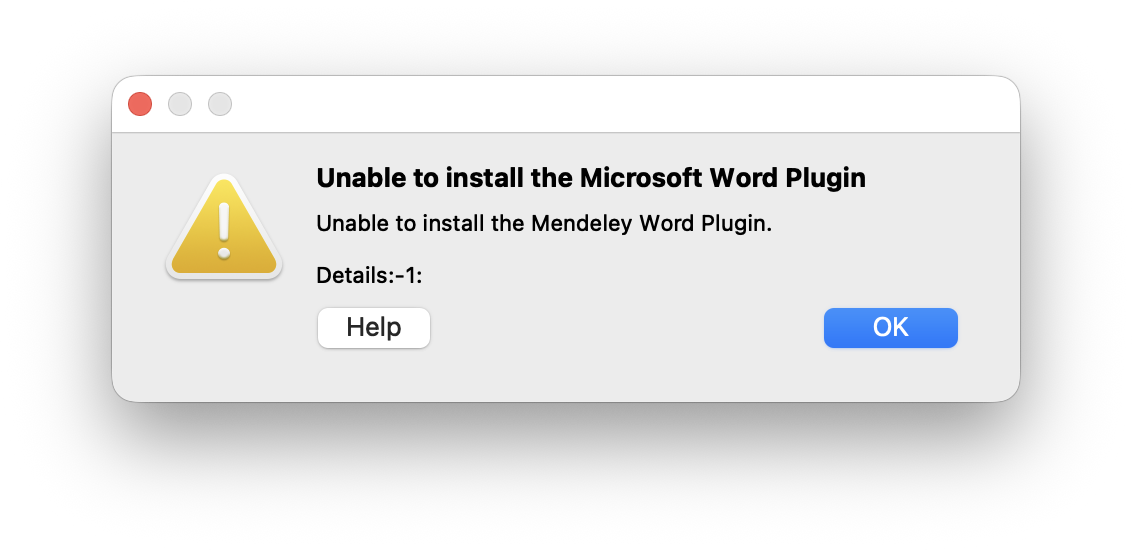
You click Install Word Plugin in Mendeley Desktop and it responds with something like Unable to install the Microsoft Word plugin.
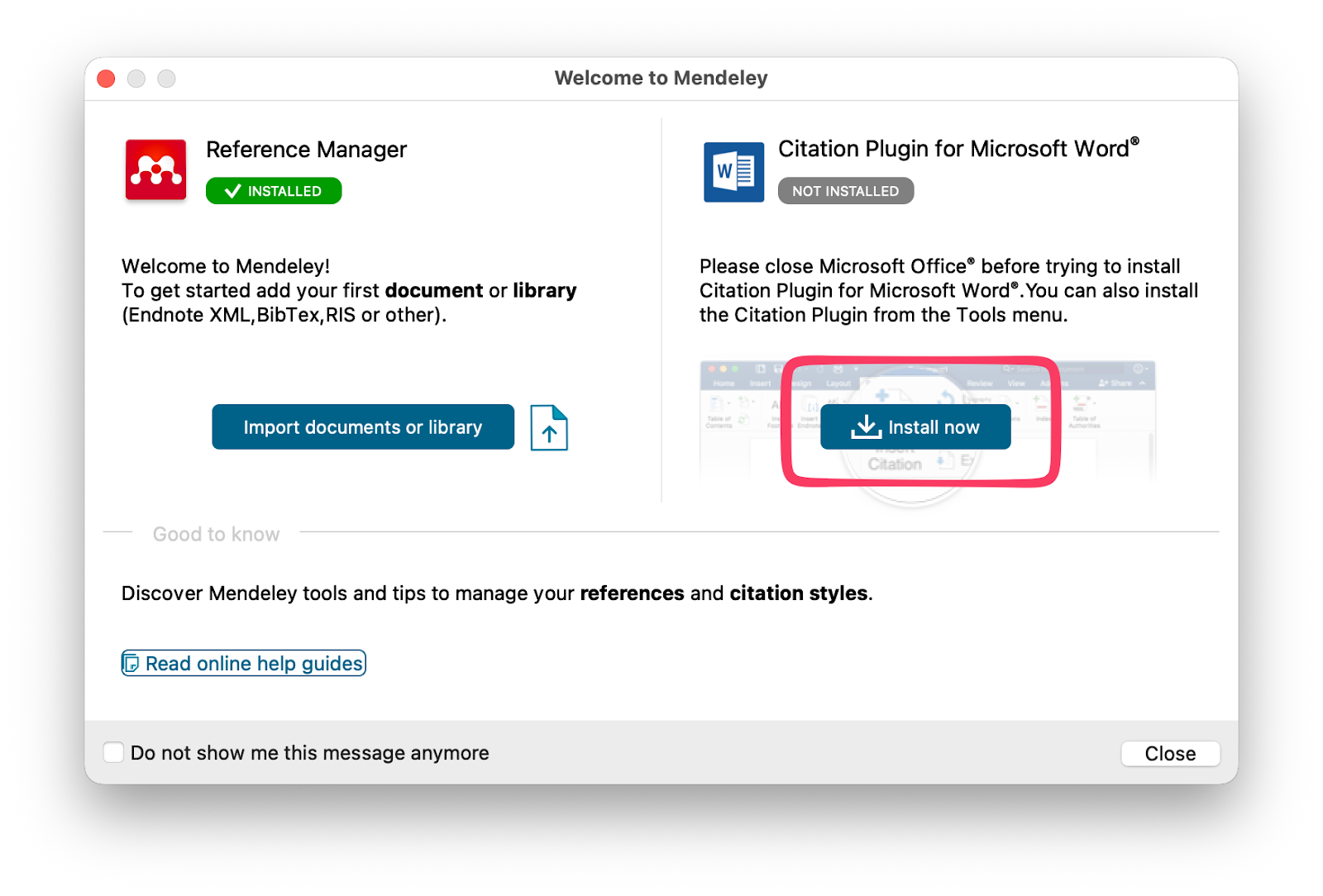
Super helpful. 🙃
The good news? It’s totally fixable—and once you know how, it’s actually pretty simple. I’ve had to do this more than once, so here’s the exact workaround that worked for me on macOS.
Not in the mood for reading? Watch the video instead.
- How to Download Mendeley Desktop for Mac
- The Microsoft Word Plug-in Problem
- Step 1: Locate the Mendeley Word Plugin Manually
- Step 2: Open Microsoft Word’s Startup Folder
- Step 3: Paste the Plugin
- Step 4: Restart Microsoft Word and Mendeley Desktop
- Step 5: Test the Plugin
- Video
- Final Thoughts
How to Download Mendeley Desktop for Mac
Before we get started, let me make it clear that this method is for Mendeley Desktop and NOT Mendeley Reference Manager.
They are both official Mendeley apps, but some of us prefer using the legacy Mendeley Desktop app to manage our references.
If you are using the Mendeley Reference Manager app, you do not need to follow this guide. It should work out of the box.
Now, here is how you can download the Mendeley Desktop app for Mac.
Option 1: Direct Download
You can download it directly from the Mendeley server and install it manually.
Download Mendeley-Desktop-1.19.8-OSX-Universal.dmg
Or downlaod from Archive.org, just in case link above is broken.
(Archive.org) Download Mendeley-Desktop-1.19.8-OSX-Universal.dmg
Option 2: Homebrew Package Manager
Alternatively, you can install it through the Homebrew package manager using the tap I maintain.
brew install junian/mirrors/mendeley-desktop-appYou can read more about the Homebrew method in my other post.
Open Mendeley Desktop app
Once you have installed the Mendeley Desktop app for Mac, you may need to perform extra steps to allow it in System Settings.
Read my guide on how to open an app blocked by macOS Gatekeeper.
The Microsoft Word Plug-in Problem
Mendeley Desktop thinks it can install the Microsoft Word plugin automatically. In reality, macOS permissions and newer Microsoft Word versions often get in the way. Most likely, it’s blocked by Apple’s TCC Full Disk Access restrictions.
So instead of fighting it, we’ll just install the plugin manually.
Step 1: Locate the Mendeley Word Plugin Manually
First, open the Finder app and follow these steps:
- Go to Applications from the left sidebar
- Find Mendeley Desktop.app
- Right-click it and select Show Package Contents
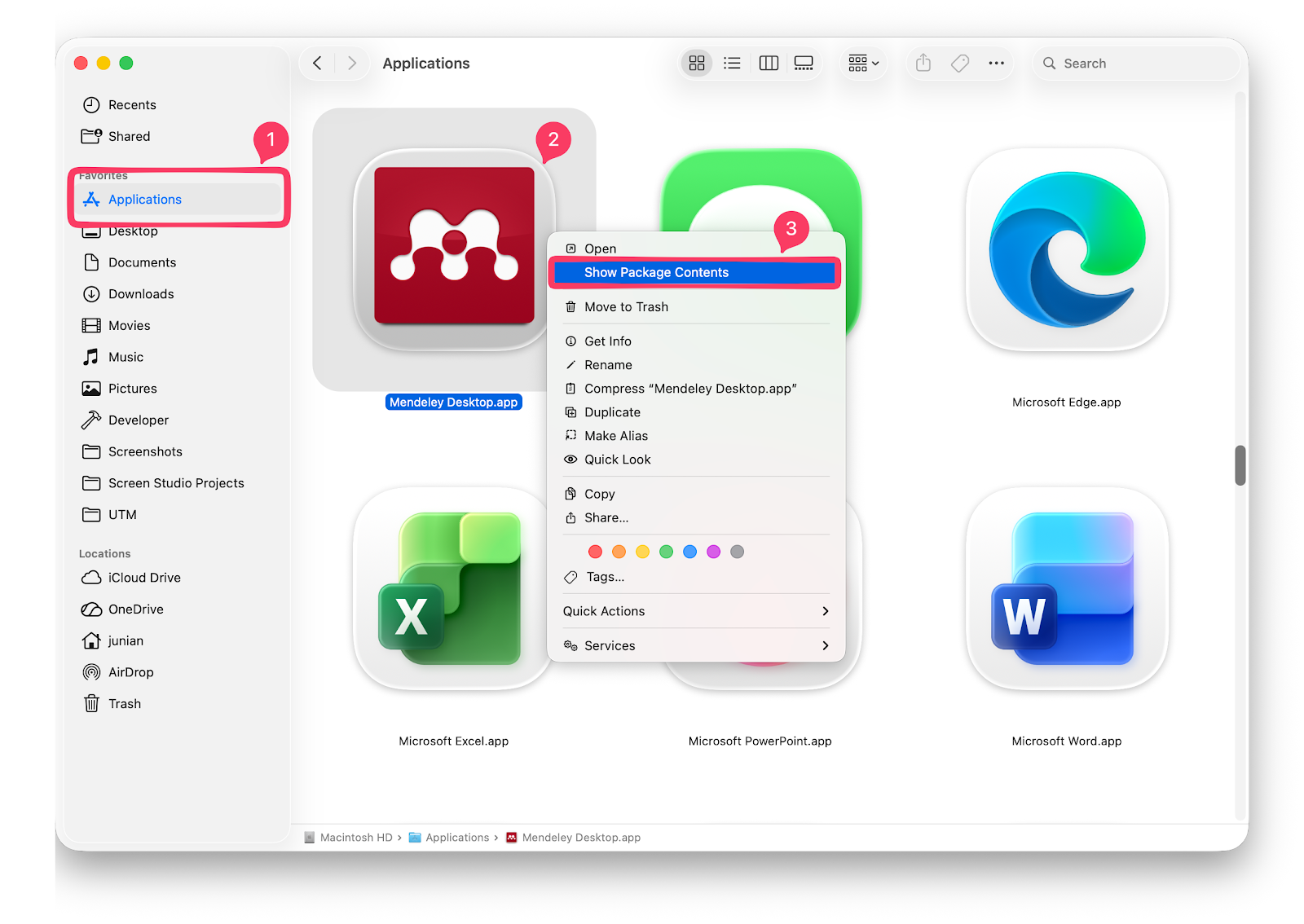
Navigate to the following path:
Contents/Resources/macWordPlugin/word2016/
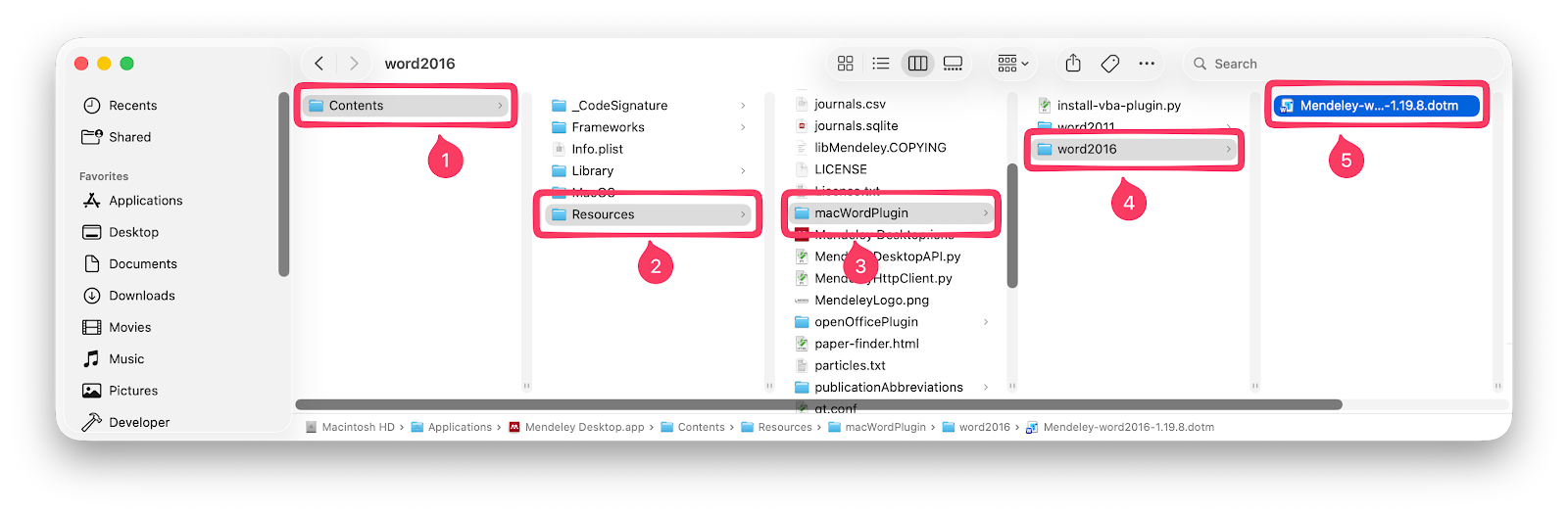
If you’re comfortable with Terminal, you can go directly to the full path:
'/Applications/Mendeley Desktop.app/Contents/Resources/macWordPlugin/word2016/Mendeley-word2016-1.19.8.dotm'Copy the plugin file you see there.
That’s the plugin Word actually needs. We just have to put it in the right place inside Microsoft Word’s plugin directory on macOS.
Step 2: Open Microsoft Word’s Startup Folder
Now open the Microsoft Word app and follow these steps:
- Click Tools in the top menu bar
- Choose Templates and Add-ins
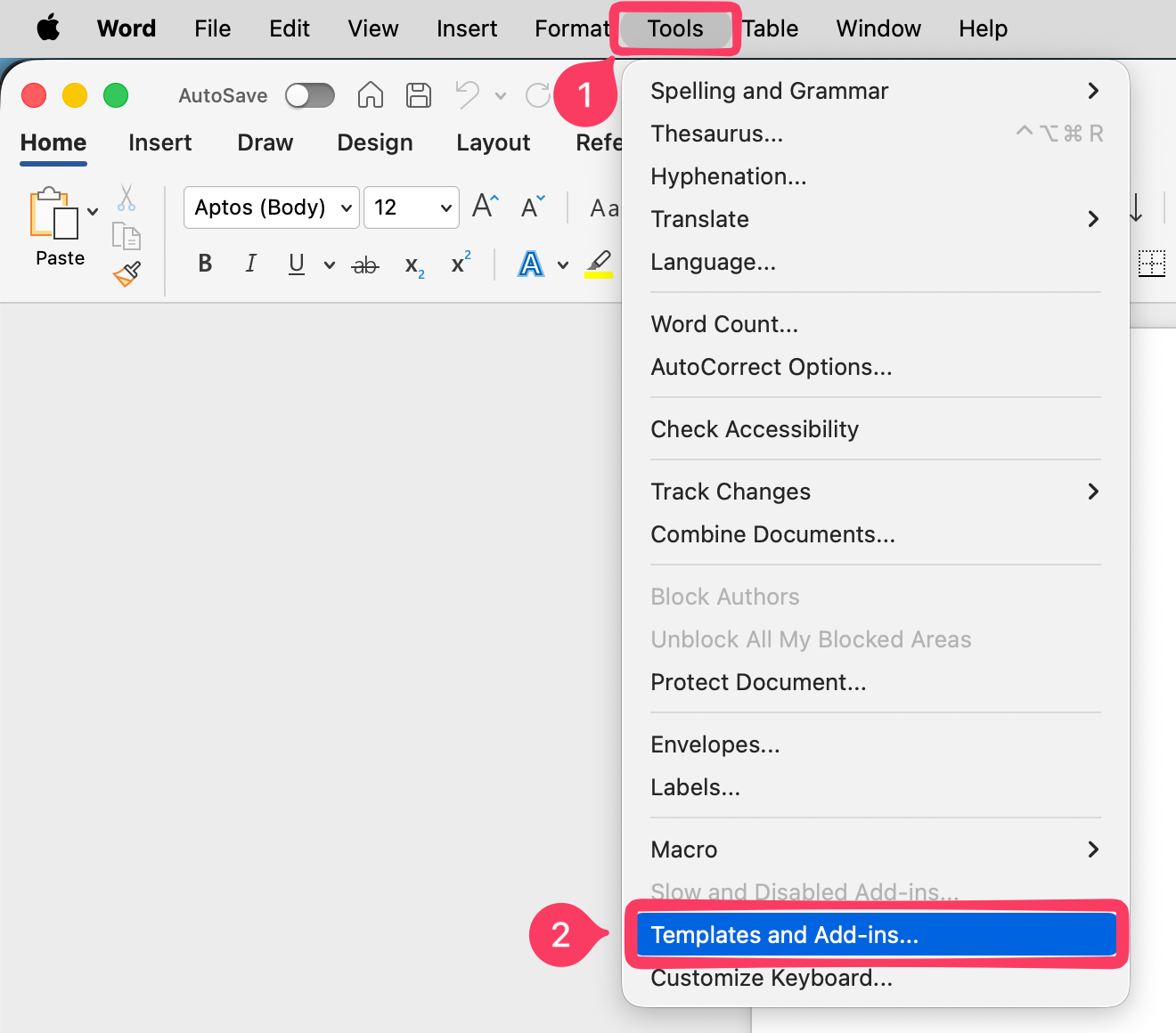
- Click the Plus (+) button under Global Templates and Add-ins
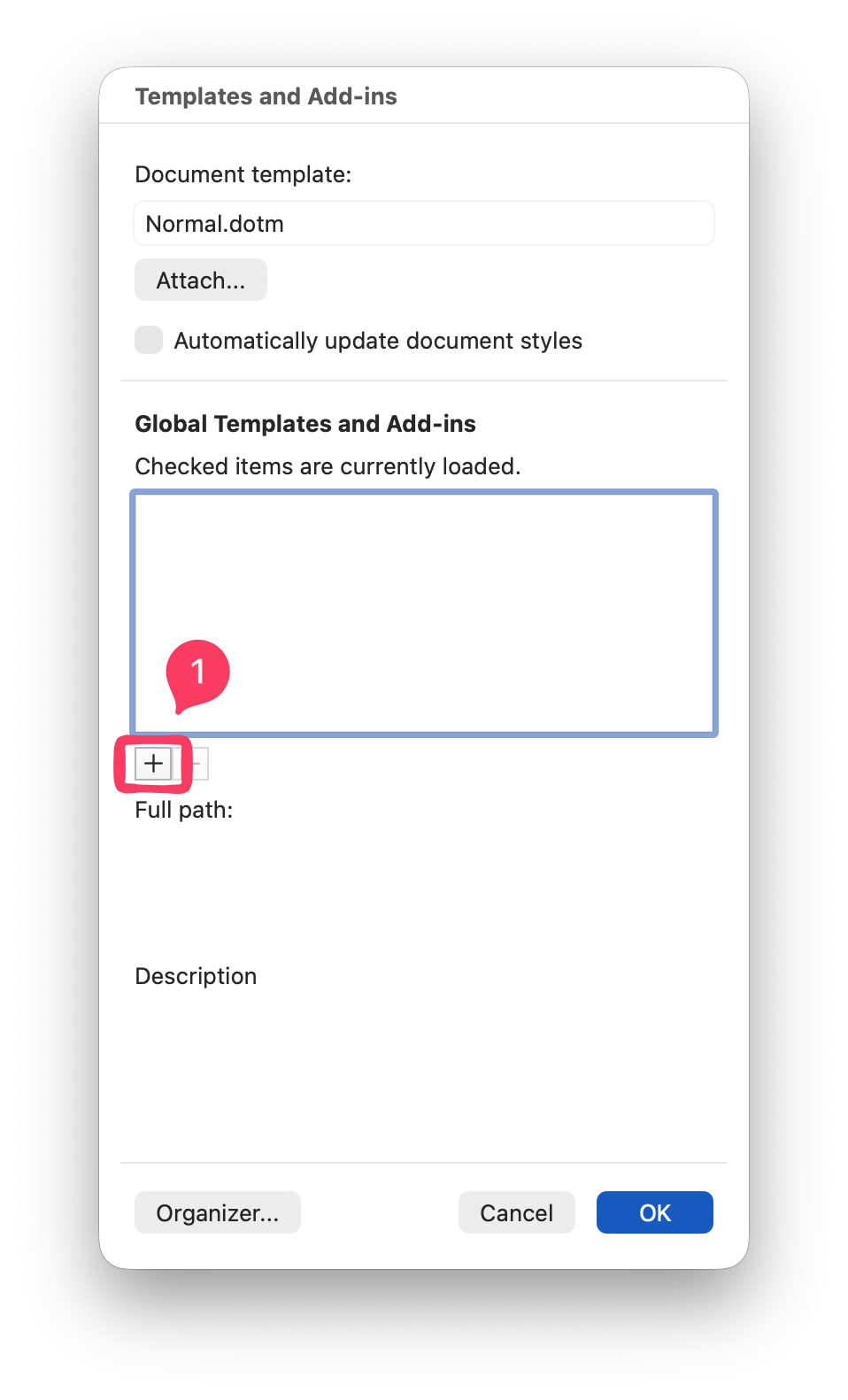
- A folder selection dialog will appear.
- Navigate to the Startup folder.
- You’ll see the Word folder. Right-click it.
- Click Show in Finder.
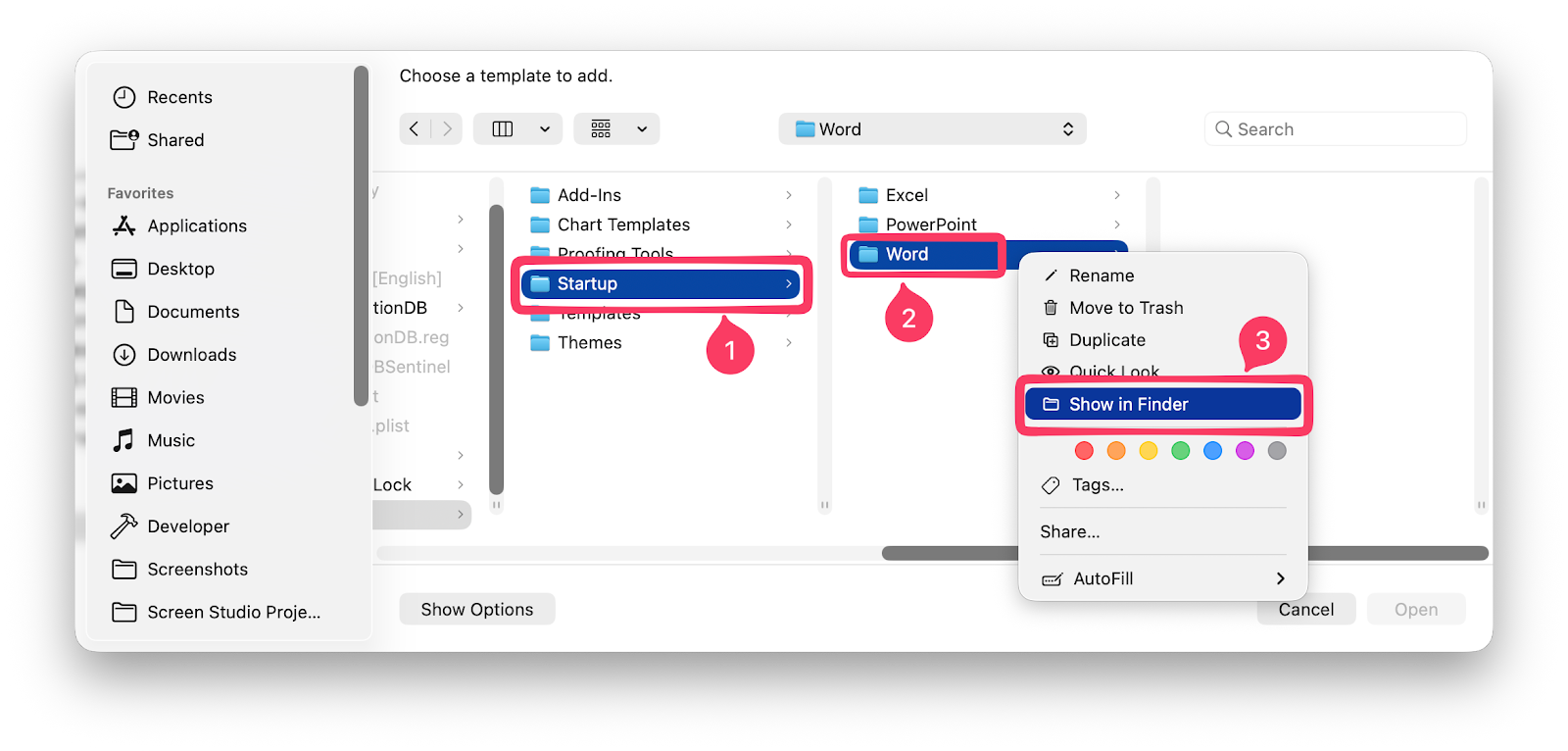
This opens the exact folder Word checks for plugin files when it launches.
Alternative with Direct Path
Alternatively, you can open the Microsoft Word’s Startup folder using the direct path.
You can use either Finder’s Go To Folder… (⇧ Shift + ⌘ Command + G) or the open command from Terminal.
Following is the direct path of the MS Word’s Startup folder:
"$HOME/Library/Group Containers/UBF8T346G9.Office/User Content/Startup/Word/"If the path above doesn’t work, try this path:
"$HOME/Library/Group Containers/UBF8T346G9.Office/User Content.localized/Startup.localized/Word/"Step 3: Paste the Plugin
In this step, we’ll paste the plugin file we copied from Step 1. Inside the Startup folder:
- Open the Word folder
- Paste the Mendeley plugin file you copied earlier
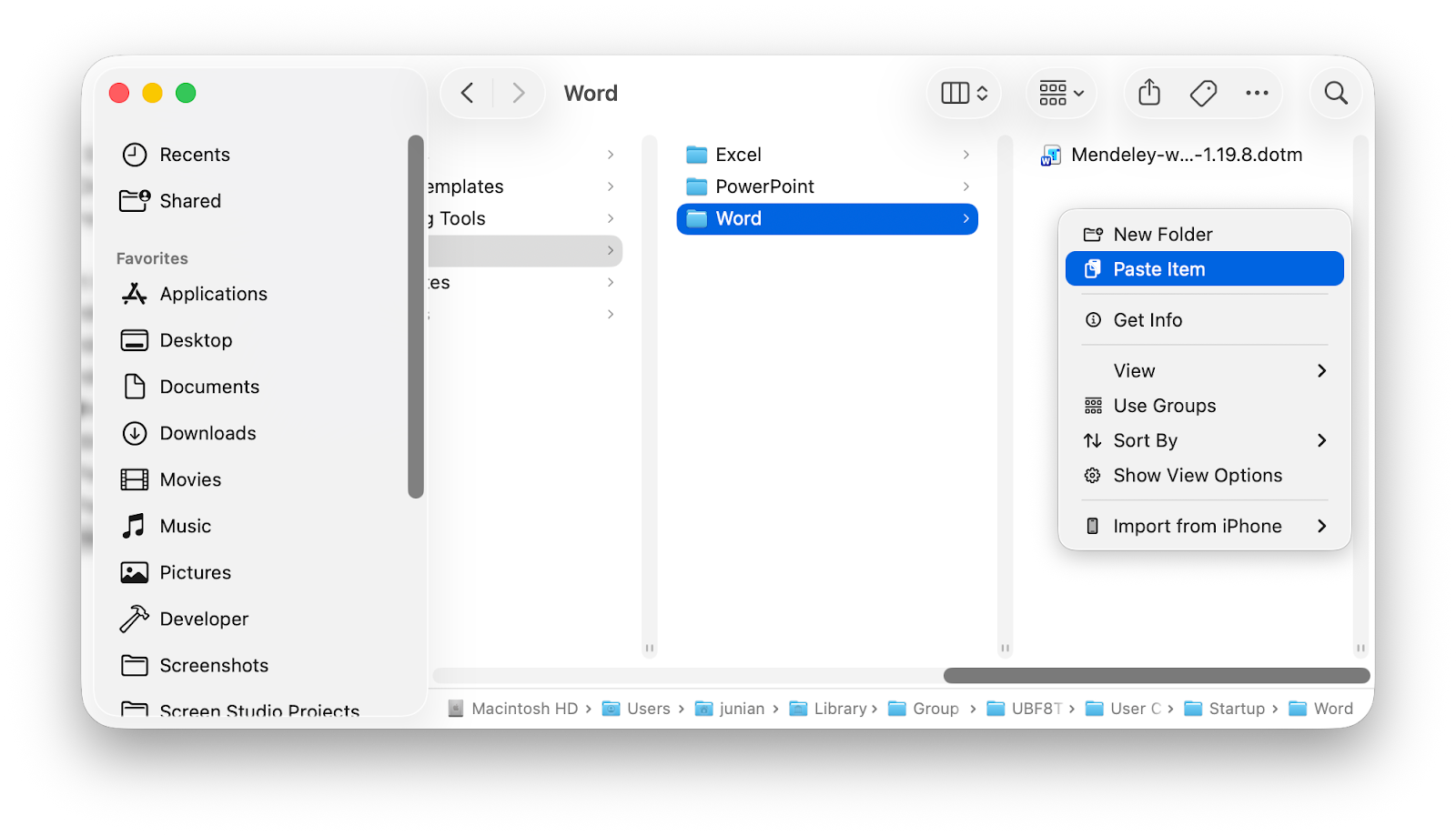
That’s it for the file part. The next time Microsoft Word launches, it will detect the Mendeley Desktop plugin.
Step 4: Restart Microsoft Word and Mendeley Desktop
Close all dialogs or windows opened by Microsoft Word. Quit Microsoft Word (use command + q).
Do the same with Mendeley Desktop. It’s not strictly required, but it’s better to restart it as well.
Step 5: Test the Plugin
Create a blank document in Microsoft Word. Open the References tab.
If everything worked, you should see the Mendeley Desktop citation plugin there.
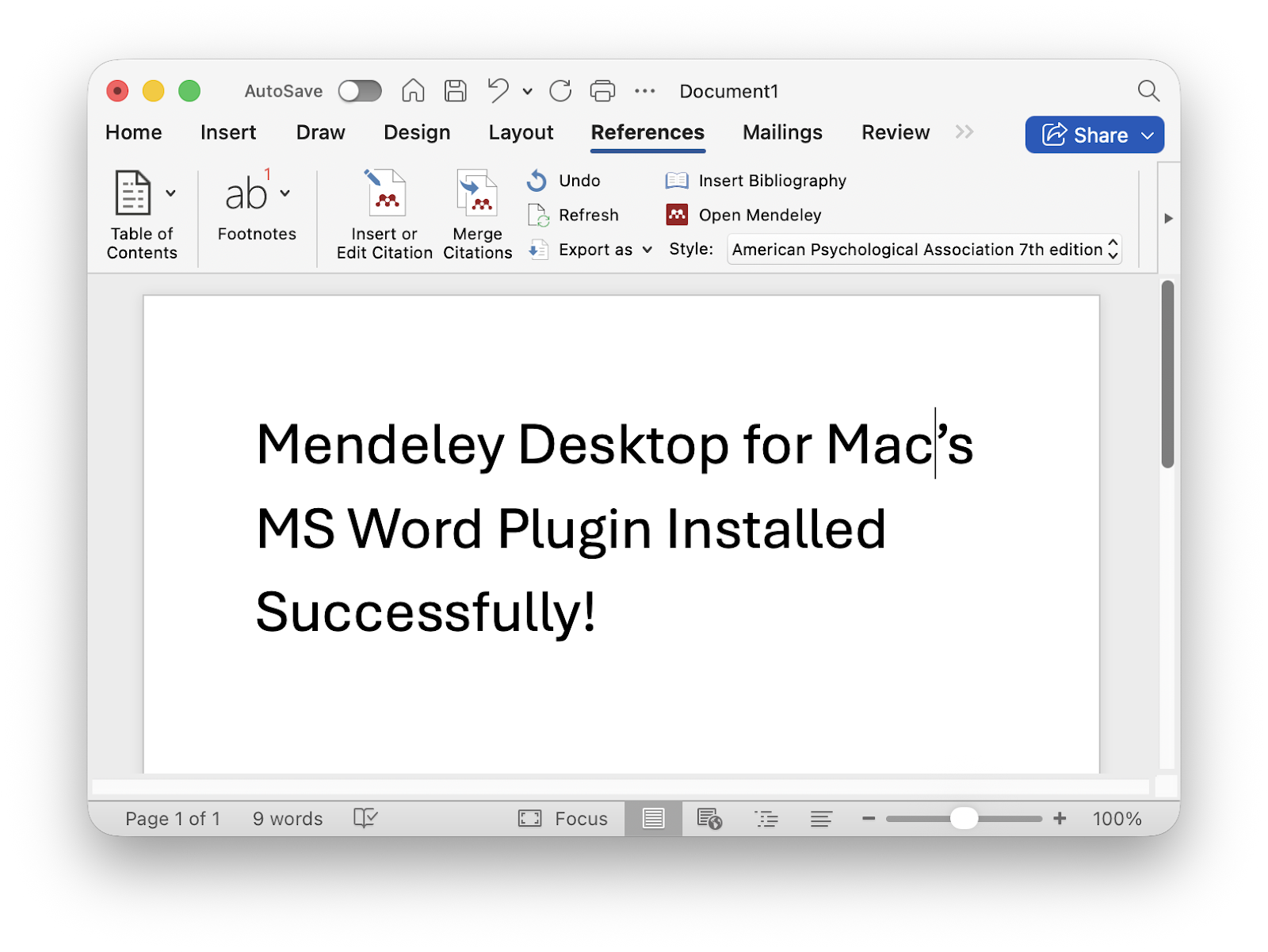
Click it, allow access if prompted, and you can now:
- Insert citations
- Insert bibliographies
- Sync directly from Mendeley Desktop
Video

Final Thoughts
This is one of those classic “the button doesn’t work, but the feature still does” situations.
Once installed, the Mendeley Desktop for Mac’s Microsoft Word plugin works just fine. It just needs a little manual help getting there. If you’re writing papers regularly, this is absolutely worth the five-minute setup.
Alright, that’s it for today. As usual, if you have any questions or a better method, leave a comment below. Thanks for reading, and good luck with your paper 📚✍️