
Have you ever tried to re-install Microsoft Office for Mac after a previous uninstallation? Maybe you want to downgrade to a certain version. Or maybe you just want to try something out.
Sometimes, when you do this, the Office for Mac installation will become broken. That’s because Office for Mac still leaves some files behind even after you uninstall them.
Luckily, there is a handy tool that can solve these common Office for Mac issues called Office-Reset.
What is Office-Reset?
Office-Reset is a pkg tool to fix problems with Microsoft Office for Mac installation.
It’s not an official tool, but it’s a personal side project of Paul Bowden, an engineer from Microsoft.
Here’s the complete description of this tool from the official website:
Office-Reset is a free downloadable tool that you can use to fix problems and errors encountered with Microsoft Office for Mac apps. This includes Word, Excel, PowerPoint, Outlook, OneNote, OneDrive, Teams, and AutoUpdate. The tool can help fix app launch errors, freezes, hangs, crashes, bad plug-ins, corrupt templates, performance issues, and confusing error messages.
You can tell Office-Reset to fix a specific app, or you can tell it to perform a ‘factory reset’— essentially putting Office back to the same pristine state as when you first installed it. There’s also an option to completely start over, where the tool can remove every app, cache, container, preference, and keychain entry that Office may have created while it was running.
Office-Reset does not delete your documents and workbooks. The tool doesn’t have ads, an upsell, collect your data, or install software that you don’t want. It simply runs, fixes, and quits.
I’ve personally been using this tool several times, and it’s the most useful tool out there to solve any issue with Office for Mac.
Download Office Reset Tool for Mac
You can download it directly from Office-Reset.com (or from the Archive.org backup) website. That’s my main recommendation.
But throughout history, the website has sometimes been down for unknown reasons. That’s why I decided to make this page.
My role here is only to make backup direct download links and their archived links, so if the website is inaccessible again, you can still download the original tool.
These are the download links for this tool.
| Version | Download Link | Mirror |
|---|---|---|
| 2.0 Beta 1 | 📦 Microsoft_Office_Reset_2.0.0.pkg | 🏛️ Archive.org |
| 1.9.1 | 📦 Microsoft_Office_Reset_1.9.1.pkg | 🏛️ Archive.org |
| 1.9 | 📦 Microsoft_Office_Reset_1.9.pkg | 🏛️ Archive.org |
| 1.8 | 📦 Microsoft_Office_Reset_1.8.pkg | 🏛️ Archive.org |
| 1.7 | 📦 Microsoft_Office_Reset_1.7.pkg | 🏛️ Archive.org |
| 1.6 | 📦 Microsoft_Office_Reset_1.6.pkg | 🏛️ Archive.org |
| 1.5 | 📦 Microsoft_Office_Reset_1.5.pkg | 🏛️ Archive.org |
| 1.4 | 📦 Microsoft_Office_Reset_1.4.pkg | 🏛️ Archive.org |
| 1.2 | 📦 Microsoft_Office_Reset_1.2.pkg | 🏛️ Archive.org |
Always use the latest version available. If for some reason the latest version doesn’t work, you can try using the previous version.
How to Use Office-Reset Tool
Using the Office-Reset tool is very easy.
All you have to do is download the latest version of the tool and open it like you usually install a macOS app using the Apple software package .pkg.
But this tool doesn’t actually install anything. It packages several shell scripts inside, executes them, and quits. That’s all this package does.
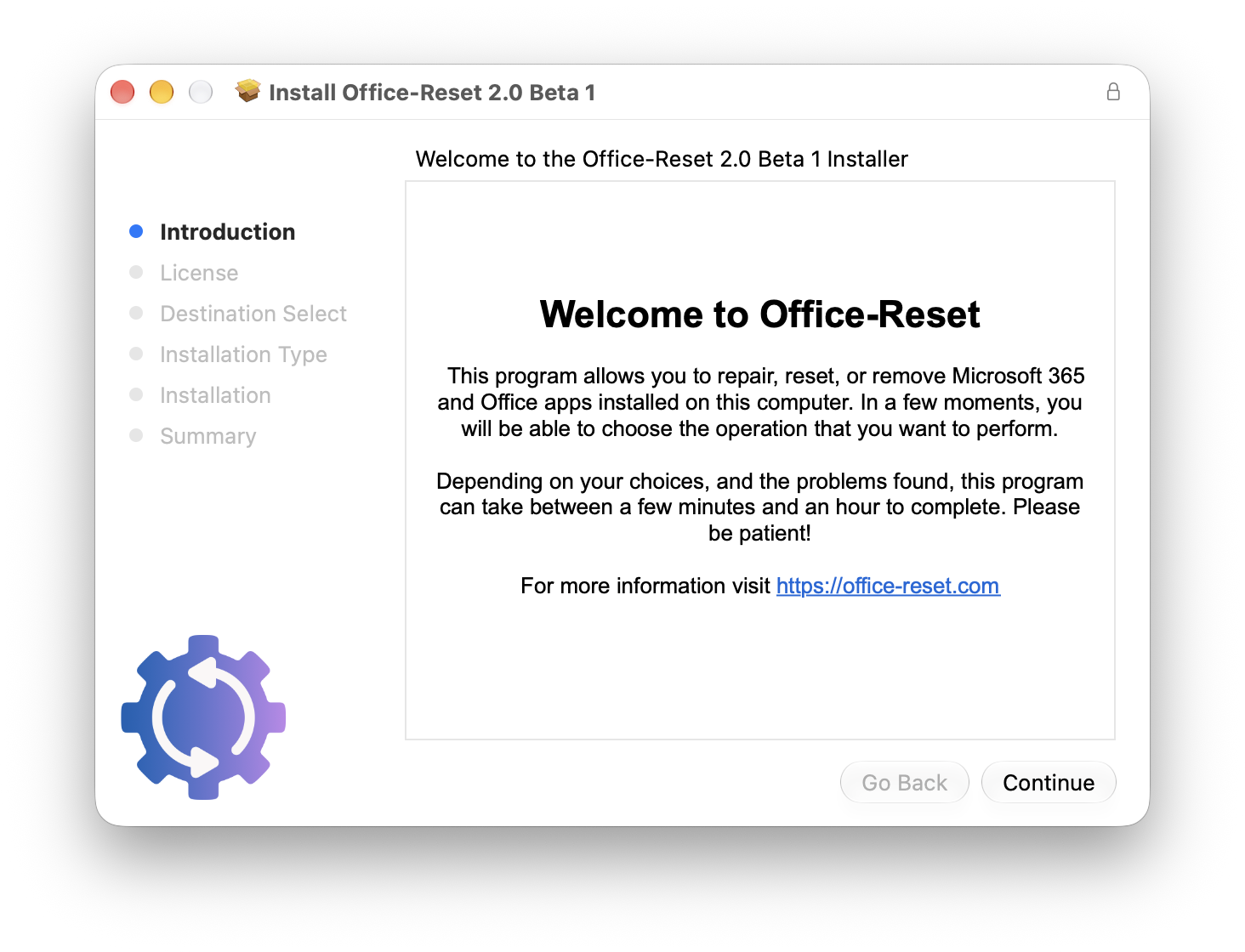
Once you have the package file, open it. Click the Continue button.
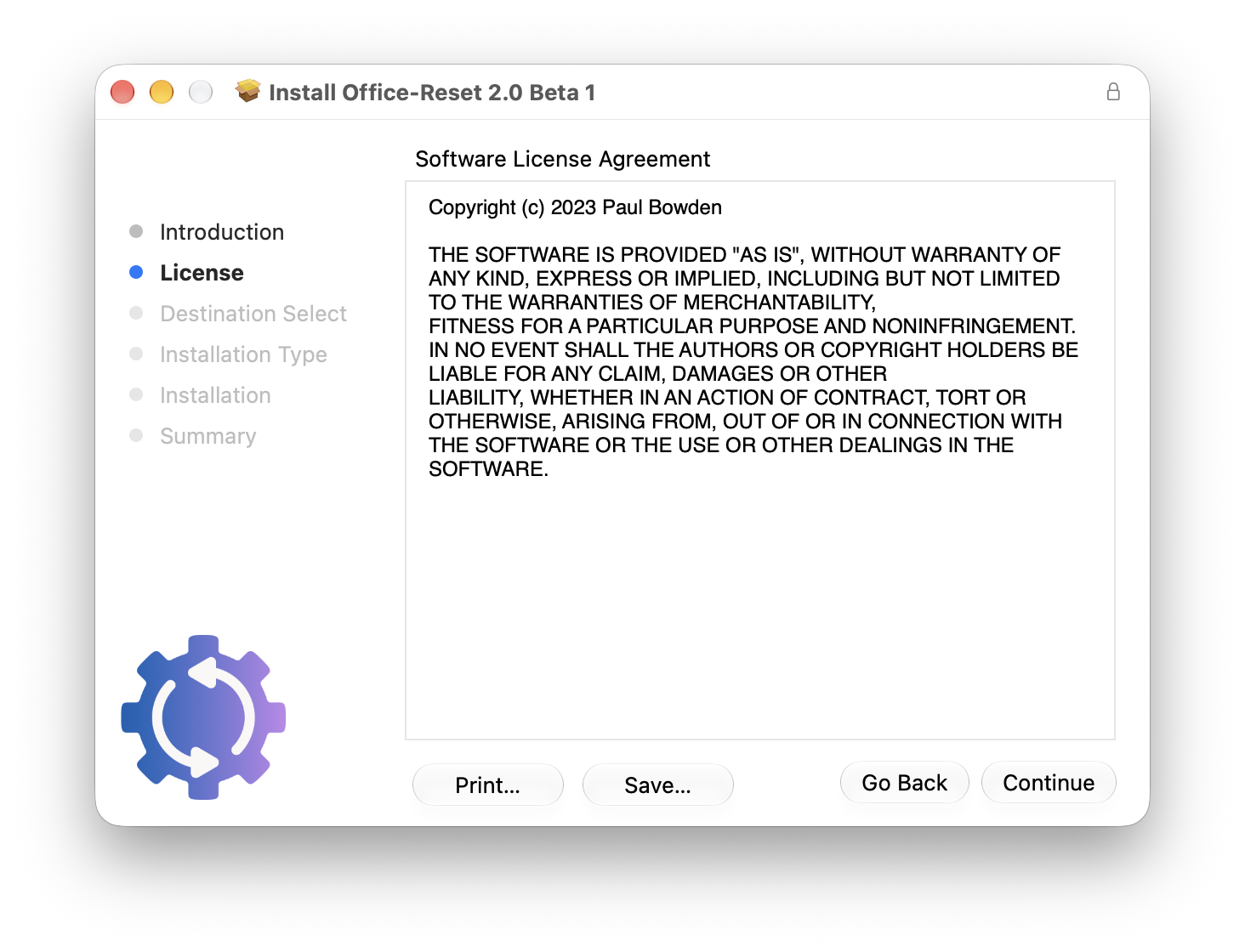
Then it’ll ask you to accept the license; just click continue and Agree to the license term.
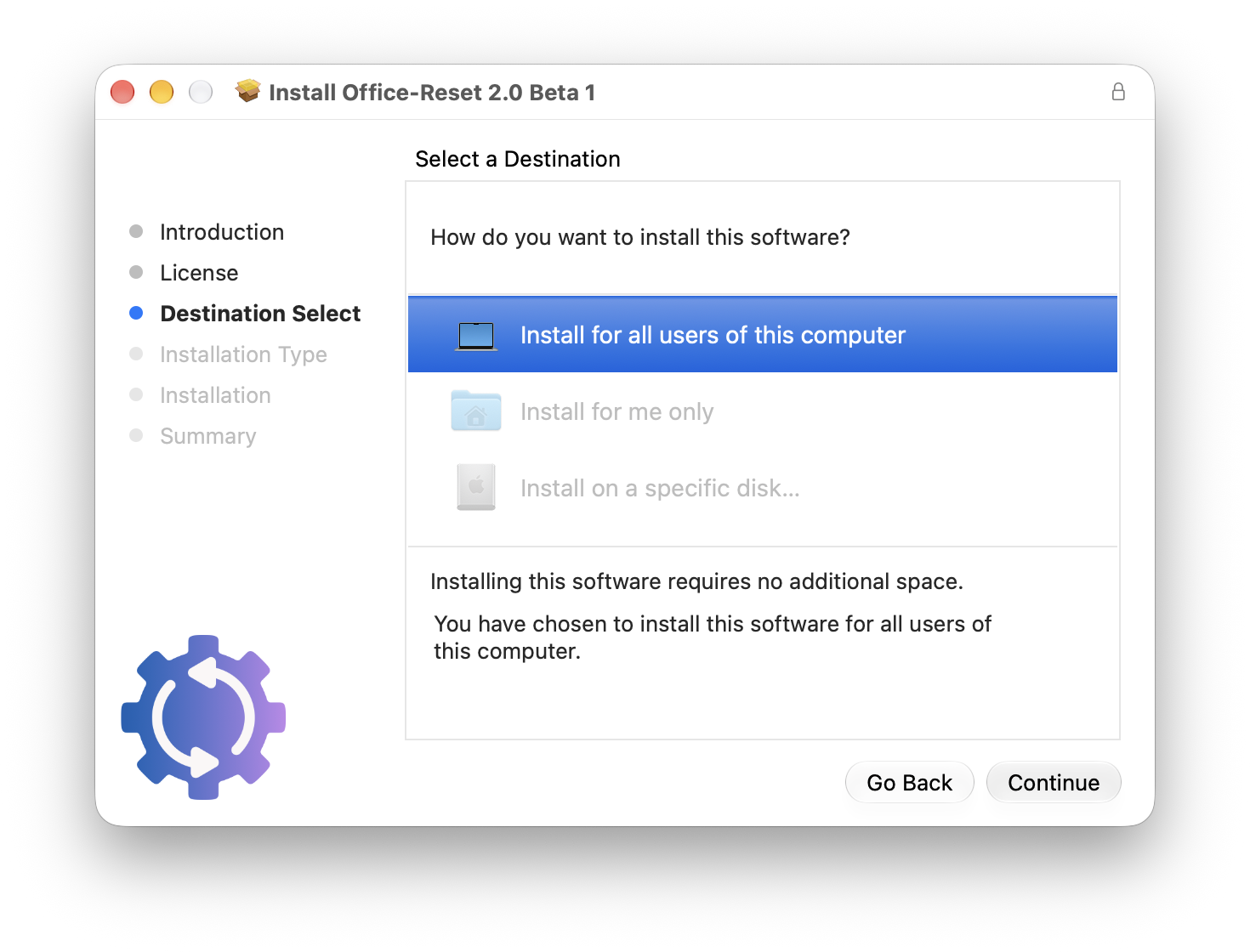
When the tool is asking for installation destination, just keep the default. As I mentioned earlier, this package doesn’t actually install anything.
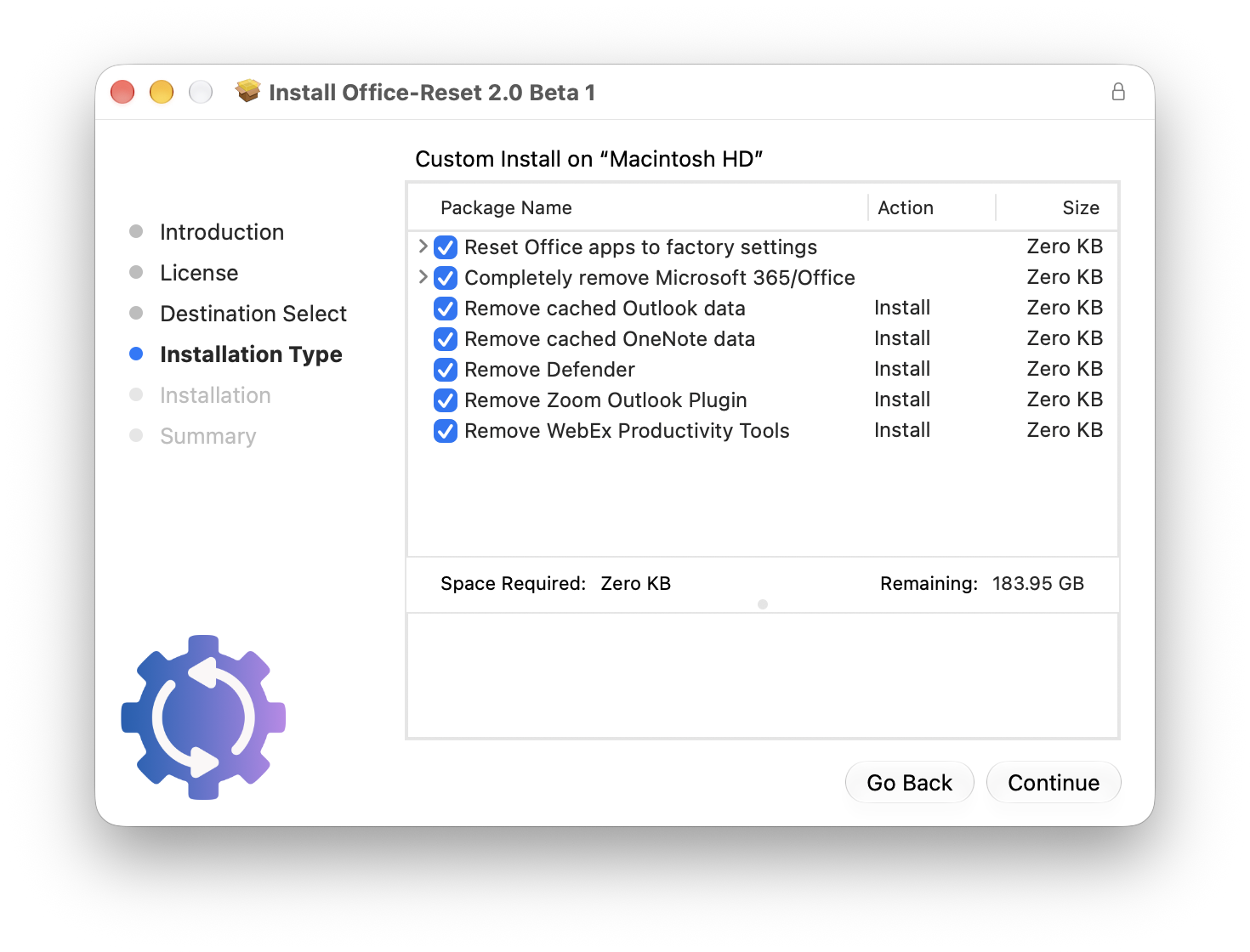
Now comes the most important part. You’ll be given several options to tick.
Each option will have a shell script that will be executed by this package. You just need to tick the options you really need.
Once you have finished choosing what to execute, click continue and just follow the rest of the instructions.
After that, you can try to re-install Microsoft Office for Mac.
Final Thoughts
Thanks for reading. Hope this page is helpful!
As usual, if you have any questions or a better method, leave a comment below. Thanks for reading, and see you next time!
References
Disclaimer
The Office-Reset tool is independently published and has not been authorized, sponsored, or otherwise approved by Microsoft Corporation. Copyright (c) 2026 Paul Bowden. All rights reserved.
Trademarks
Microsoft 365, Office 365, Excel, PowerPoint, Outlook, OneDrive, OneNote, Teams are trademarks of Microsoft Corporation, registered in the U.S. and other countries.
Mac and macOS are trademarks of Apple Inc., registered in the U.S. and other countries.
Any trademarks, service marks, product names, or named features are assumed to be the property of their respective owners.