
One day I needed to make a backup of the videos from my iPhone to a Windows PC. When I tried to play the video on Windows, it refused to play.
It’s then asking the user to install the HEVC Video Extensions from Microsoft Store.
Funnily, this extension is not free; it costs you USD 0.99!
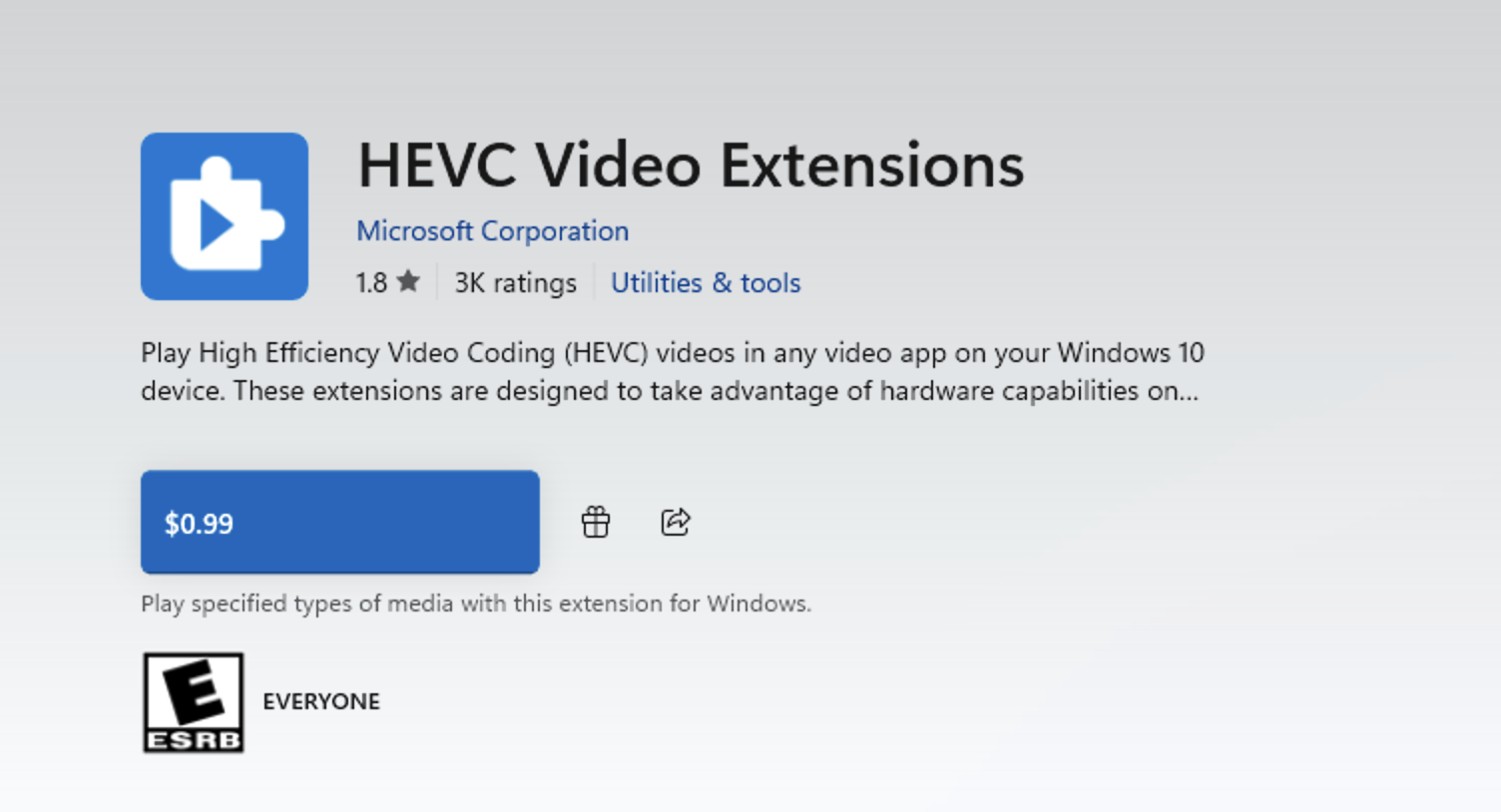
Why is that funny? Just imagine you pay for a full Windows license and yet Microsoft cheaped out without giving you this essential feature. Even macOS and iOS have it natively.
But, no need to worry about it. Because Microsoft secretly has the same extension that you can download for free called HEVC Video Extensions from Device Manufacturer.
You can’t search for it directly from Microsoft Store because they want you to pay for the HEVC license. But this extension probably exists for certain PC manufacturers.
Nevertheless, you can still download and install the HEVC extension for free. To download the HEVC Video Extensions from Device Manufacturer, all you need is to open the following URL using the Microsoft Edge browser:
https://apps.microsoft.com/detail/9N4WGH0Z6VHQ
Then click the View in Store app button on the bottom right. This will open the HEVC Video Extensions inside the Microsoft Store native app.
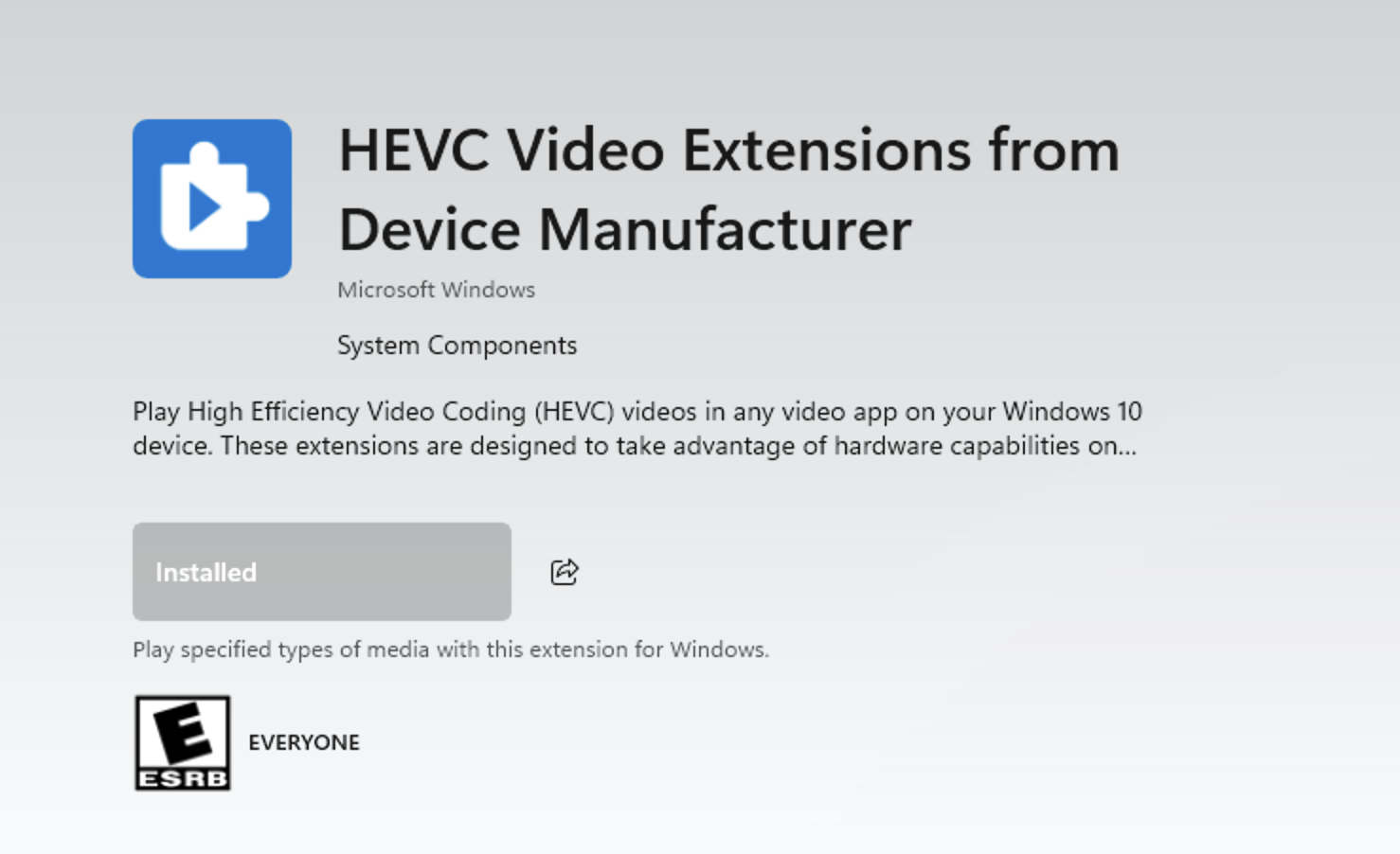
Once the Microsoft Store app is opened, just click the Install button. Once it’s done, you can open any HEVC videos using the built-in video player on your Windows without any issue.
Alternatively, if you don’t like the built-in video player, you can install a third-party video player. My personal favorite is VLC by VideoLAN - Free multimedia solutions for all OS!
Just download and install VLC, then you can play any kind of video format without any issue!
Thanks for reading my simple blog post!
As usual, if you have any questions or a better method, leave a comment below. Thanks for reading, and see you next time!