
Touch ID is one of the greatest things on my MacBook. I can authenticate a lot of stuff just by resting my finger on it. I can log in to any website using either passkey or the built-in password manager quickly too.
I wish I could use it from Terminal though.
It would be super convenient if I could use Touch ID to authenticate sudo when executing a terminal command.
By default, macOS will ask for your password whenever you execute a command with sudo.
But did you know that macOS actually supports Touch ID to authenticate sudo?
I didn’t know, but the feature is there.
You just need to update the config file.
- Video
- Enabling Touch ID for sudo on macOS 14 Sonoma or later
- Enabling Touch ID for sudo on macOS 13 Ventura or earlier
- Enabling Touch ID for sudo using mole
- Final Thoughts
Video
Not in the mood for reading? Watch the video instead.

Enabling Touch ID for sudo on macOS 14 Sonoma or later
The solution is quite simple.
On macOS 14 (Sonoma) and later, there is a template file ready to use.
The template is located at /etc/pam.d/sudo_local.template.
Here’s the content of the file on my macOS 27 Golden Gate:
$ cat /etc/pam.d/sudo_local.template
# sudo_local: local config file which survives system update and is included for sudo
# uncomment following line to enable Touch ID for sudo
#auth       sufficient     pam_tid.so
To enable Touch ID for sudo, copy the template file into sudo_local.
sudo cp /etc/pam.d/sudo_local.template /etc/pam.d/sudo_localWe need to edit the sudo_local file.
You can use vim or any other text editor to do it.
sudo -E vim /etc/pam.d/sudo_localAll we need to do is to uncomment the 3rd line and save the file.
The final /etc/pam.d/sudo_local file will look like this:
# sudo_local: local config file which survives system update and is included for sudo
# uncomment following line to enable Touch ID for sudo
auth       sufficient     pam_tid.so
Once it’s done, open a new Terminal session and test it.
Execute something with sudo, you can try something simple like:
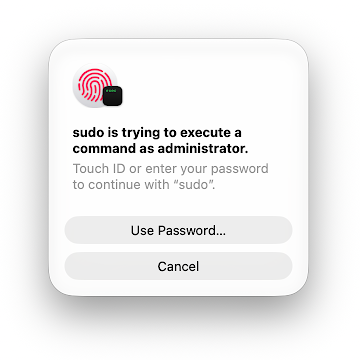
sudo ls -lah ~This time, a Touch ID dialog will show up, and you can authenticate it using your fingerprint instead of entering your password manually.
Enabling Touch ID for sudo on macOS 13 Ventura or earlier
To use Touch ID to authenticate sudo on macOS 13 Ventura or older, you need to edit the /etc/pam.d/sudo file.
Just for reference, here’s the default content on my macOS 27 Golden Gate (might differ for each macOS version).
$ cat /etc/pam.d/sudo
# sudo: auth account password session
auth       include        sudo_local
auth       sufficient     pam_smartcard.so
auth       required       pam_opendirectory.so
account    required       pam_permit.so
password   required       pam_deny.so
session    required       pam_permit.so
Now let’s add a new config that will use Touch ID to authenticate sudo.
Open Terminal.app and edit using vim or any other text editor.
You need to use sudo to edit the file.
sudo -E vim /etc/pam.d/sudoAdd the following line at the top of the config file.
auth sufficient pam_tid.soSave the new changes. In my case, the new /etc/pam.d/sudo config will look like this:
auth       sufficient     pam_tid.so
auth       include        sudo_local
auth       sufficient     pam_smartcard.so
auth       required       pam_opendirectory.so
account    required       pam_permit.so
password   required       pam_deny.so
session    required       pam_permit.so
Once it’s done, open a new Terminal session and test it.
Execute something with sudo, you can try something simple like:
sudo ls -lah ~This time, a Touch ID dialog will show up, and you can authenticate it using your fingerprint instead of entering your password manually.
NOTE:
/etc/pam.d/sudois a default macOS file, so it will be overwritten by system updates. You need to re-apply this change after each time you update macOS.
Enabling Touch ID for sudo using mole
Another alternative is to use mole to configure Touch ID for sudo.
You can first install mole using brew.
brew install moleThen execute the following command and follow the instructions.
mo touchidThat’s it, mole will add the configuration automatically, similar to the manual methods above.
Final Thoughts
That’s all I can write for today. Thanks for reading, and see you in my next post.