
If you use macOS regularly, you know that Finder is very essential to the operating system. Finder is like File Explorer of macOS.
You can’t really terminate Finder to use macOS properly. It’s autostart for every boot and it’s always running in the background doing important stuff.
But sometimes, when I’m using my Mac, suddenly the entire screen doesn’t respond to anything. Whatever I click, it just did nothing.
Sometimes even as simple as browsing files also didn’t work.
That’s some of a few symptoms that the Finder app is freezing or hanging. Something was wrong with it.
As an IT expert, the first instinct should be “have you tried turning it off and on again?” Or, in simpler sentence: quit and relaunch Finder to fix it. Most of the time, it works. Let’s find out how.
- Relaunch Finder from Dock Right-Click
- Relaunch Finder from Force Quit Applications Window
- Relaunch Finder from Terminal
- Relaunch Finder from Activity Monitor
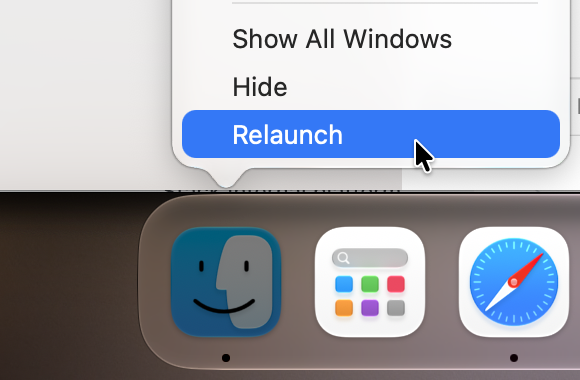
Relaunch Finder from Dock Right-Click
You can relaunch Finder from its icon on the macOS Dock. It’s by default located at the leftmost position on the Dock.
- Hold the ⌥ option button on your keyboard.
- While still holding it, right-click on the Finder icon on your macOS Dock.
- Release the ⌥ option button; it’ll show multiple menu options; click the Relaunch option.
- This will automatically quit and relaunch Finder.
Relaunch Finder from Force Quit Applications Window
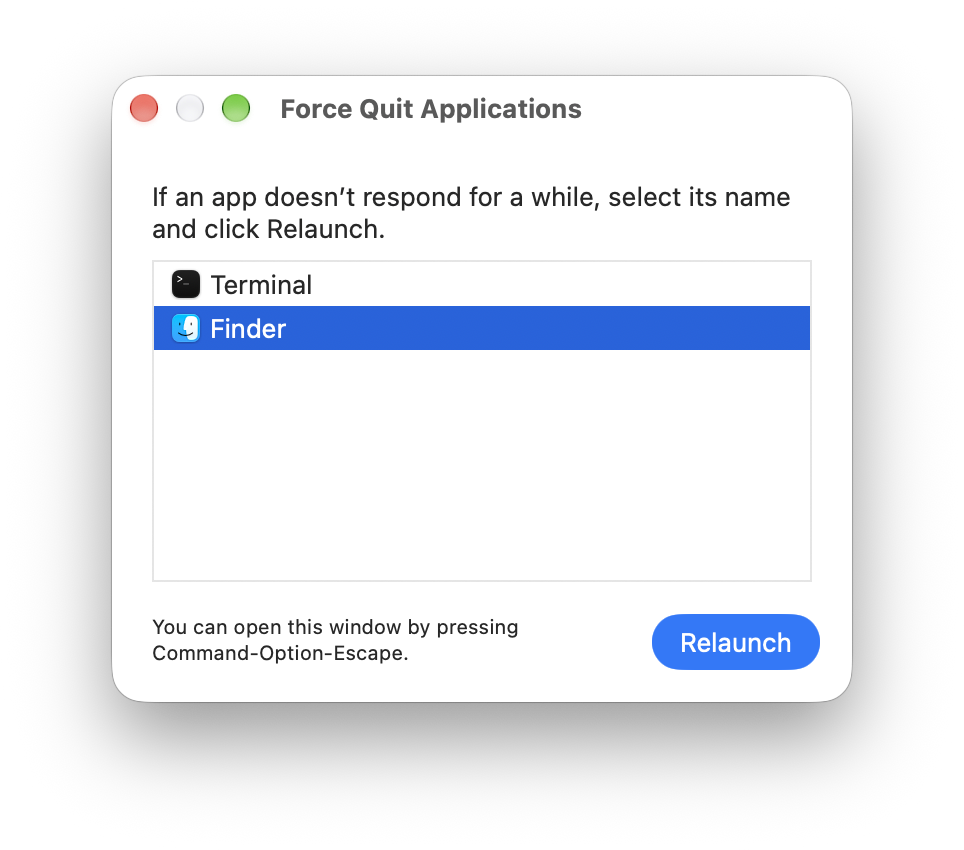
Force Quit Applications window is like an equivalent of ctrl + alt + del for macOS. All you need to do is open this window and relaunch Finder.
Open Force Quit Applications Window by pressing the following keyboard shortcut:
⌘ command + ⌥ option + esc
Select Finder from the app list.
Click the Relaunch button.
This will automatically quit and relaunch Finder.
Relaunch Finder from Terminal
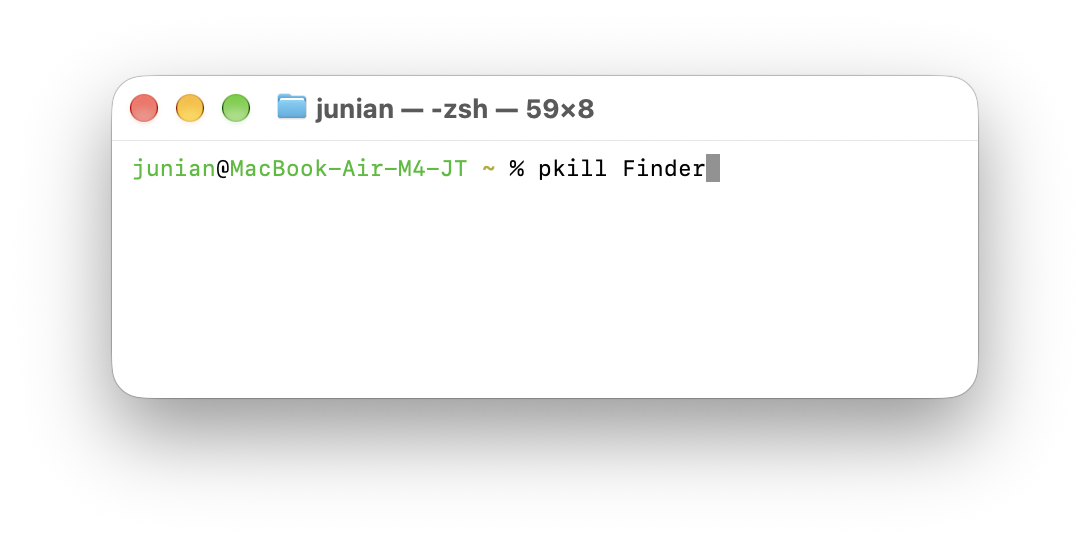
Terminal commands are my favorite method to fix stuff on an operating system. It’s not that user-friendly for most users, though. But no worries, relaunching Finder from the terminal is not as scary as everyone thought. It’s quite straightforward, actually.
Open Spotlight Search by pressing the following keyboard shortcut:
⌘ command + space
Type “Terminal” or any other terminal app you use.
Enter the following command and press enter:
pkill FinderThe Finder process will be terminated and restarted immediately.
Relaunch Finder from Activity Monitor
Activity Monitor is like the Task Manager for macOS. You can open it, find the process name, and quit the Finder process.
Open Spotlight Search by pressing the following shortcut:
⌘ command + space
Type “Activity Monitor” and press enter.
Look for “Finder” under the Process Name column.
Click the Stop button above (the one that looks like ❌)
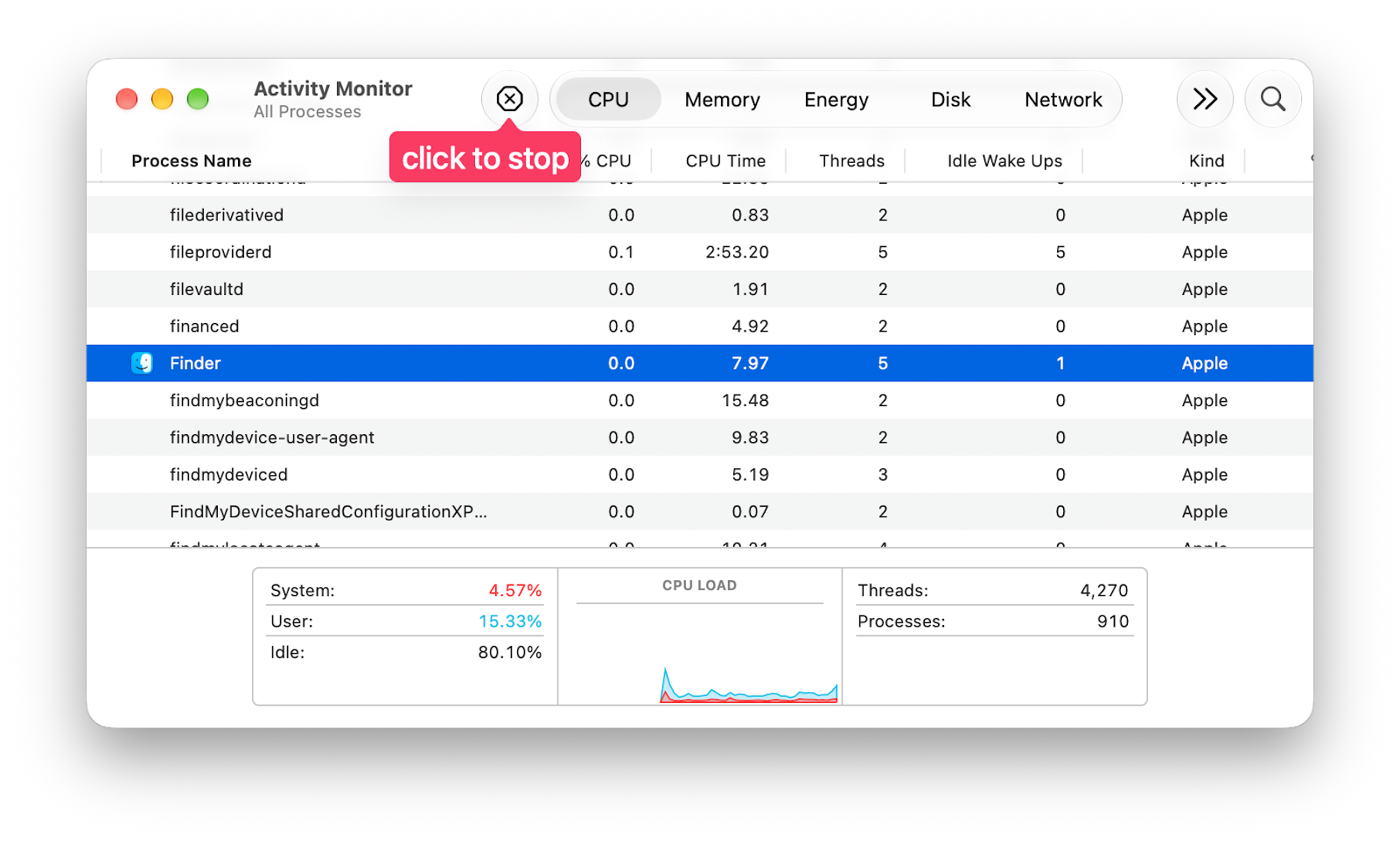
Finder process name in Activity Monitor You can either click Quit or Force Quit if the normal Quit doesn’t work.
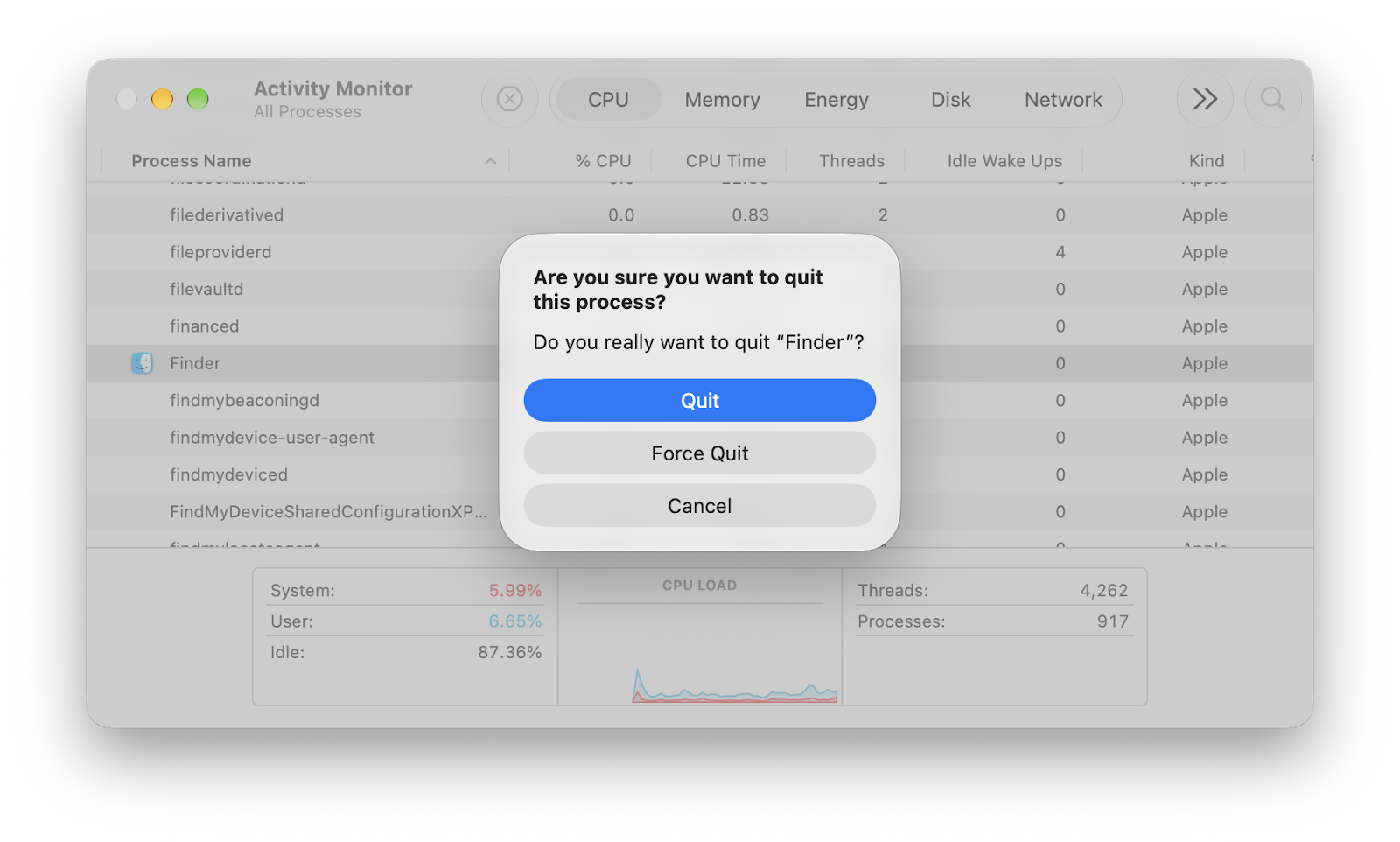
Finder Quit or Force Quit from Activity Monitor This method will simply terminate Finder. To relaunch Finder, just click the Finder icon from the macOS Dock.
Final Thoughts
Thanks for reading my short tutorial. Hopefully, it’s useful when you’re experiencing a freezing Finder when using your Mac.
As usual, if you have any questions or a better method, leave a comment below. Thanks for reading, and see you next time!