
If you’re coming from Windows, when a software or program is freezing or hanging, your first instinct would be to press the Ctrl + Alt + Del shortcut to open Task Manager and force close the app.
Now you might be wondering, what to do if it’s on Mac? Is there Ctrl + Alt + Del too? Is there a Task Manager?
The answer is No and Yes. Let’s find out more about it.
Force Quit Applications Window
The keyboard shortcut Ctrl + Alt + Del won’t do anything on Mac. But there is something similar you can do to force quit a freezing app through the Force Quit Applications window. Follow these steps on how to do it.
Press the following keyboard shortcut to open the Force Quit Applications window.
⌘ command + ⌥ option + esc
Once the window is displayed, select the app you want to Force Quit.
Click the Force Quit button; this will terminate the selected app immediately.
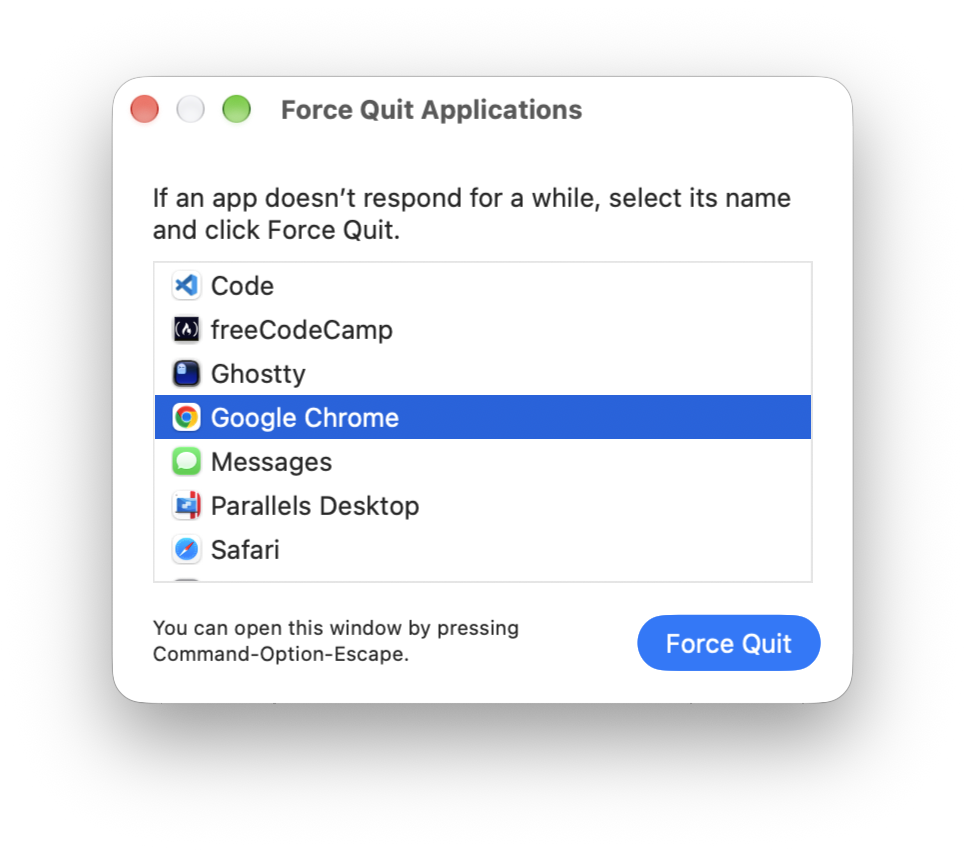
Force Quit Applications on Mac Re-open the app you just terminated; hopefully, it’s no longer causing any issue.
Please note that the Force Quit Applications window is not exactly the same as Task Manager on Windows.
If you’re looking for something similar to Windows’ Task Manager, what you’re looking for is called Activity Manager.
Activity Manager: Task Manager for Mac
There is no shortcut to open the Activity Manager app directly, but you can quickly open it by following these steps:
Open Spotlight search with the following keyboard shortcut.
⌘ command + space
Then type
Activity Managerand press return.This will open the Activity Manager app, which is quite similar to Task Manager.
Find which app is hogging CPU or RAM resources.
Click the Stop button above (the one that looks like ❌)
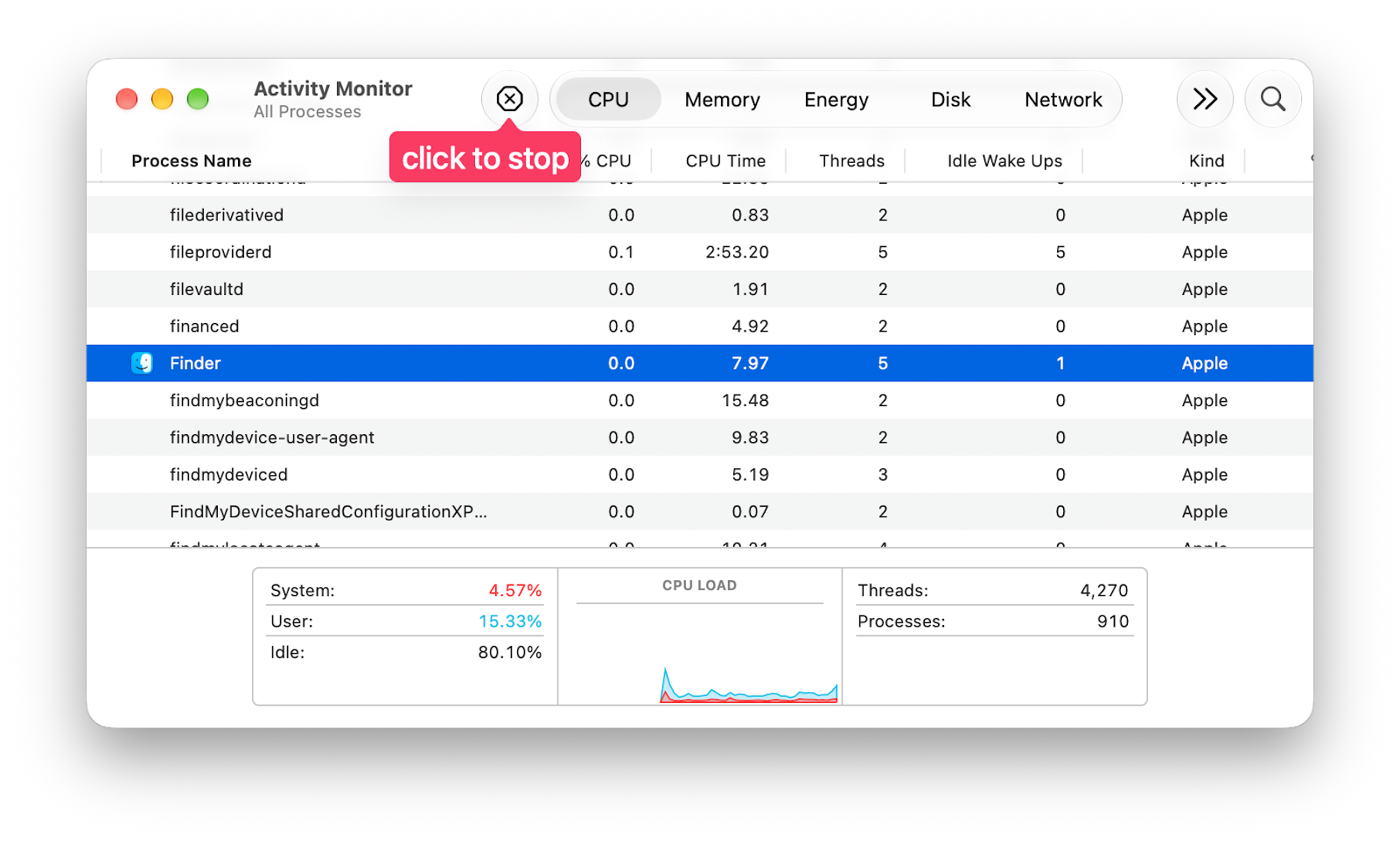
Process name in Activity Monitor You can either click Quit or Force Quit if the normal Quit doesn’t work.
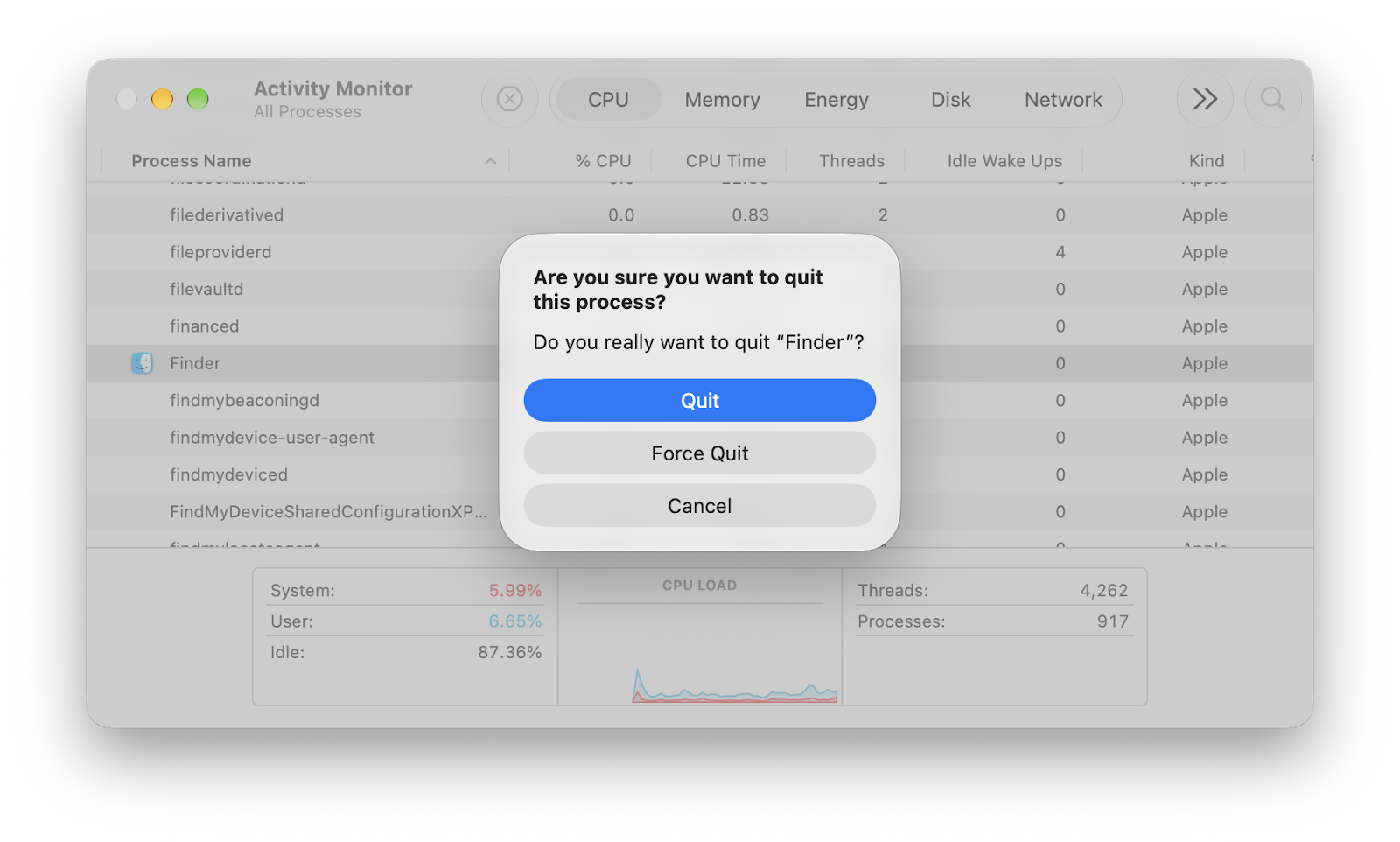
Quit / Force Quit App from Activity Monitor
The selected app will be terminated. You can then try re-open the app.
If you need something quicker, assuming you know which app is freezing, you can do it from Terminal too.
Terminate Freezing Mac App with Terminal Command
If you know which app is freezing, you can open Terminal and terminate it.
Open Spotlight search with the following keyboard shortcut:
⌘ command + space
Type “Terminal” (or any other terminal emulator) and press return.
Use the
pkillcommand to terminate a freezing app. For example, if you want to terminate the Mail app, enter the following command:pkill Mail
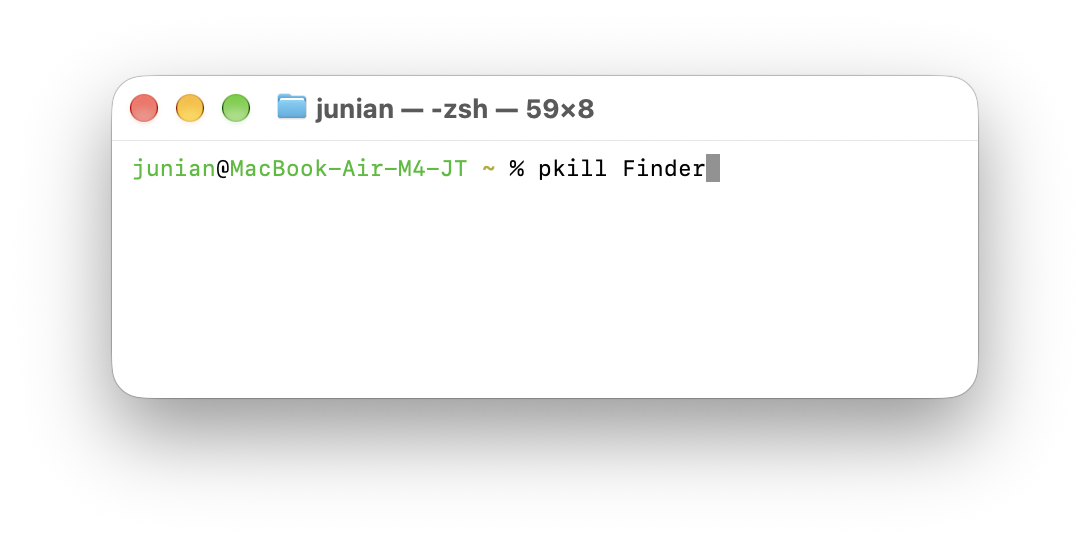
That’s it. The selected app will be terminated immediately. You can then restart the freezing app.
Final Thoughts
Thanks for reading this short tutorial. I hope it’s somewhat useful.
As usual, if you have any questions or a better method, leave a comment below. Thanks for reading, and see you next time!