For now, the best option to use Windows OS on Apple Silicon Mac is to use Parallels Desktop.
I’ve tried the other alternatives, and honestly, this is hands down the best app to virtualize Windows on Mac.
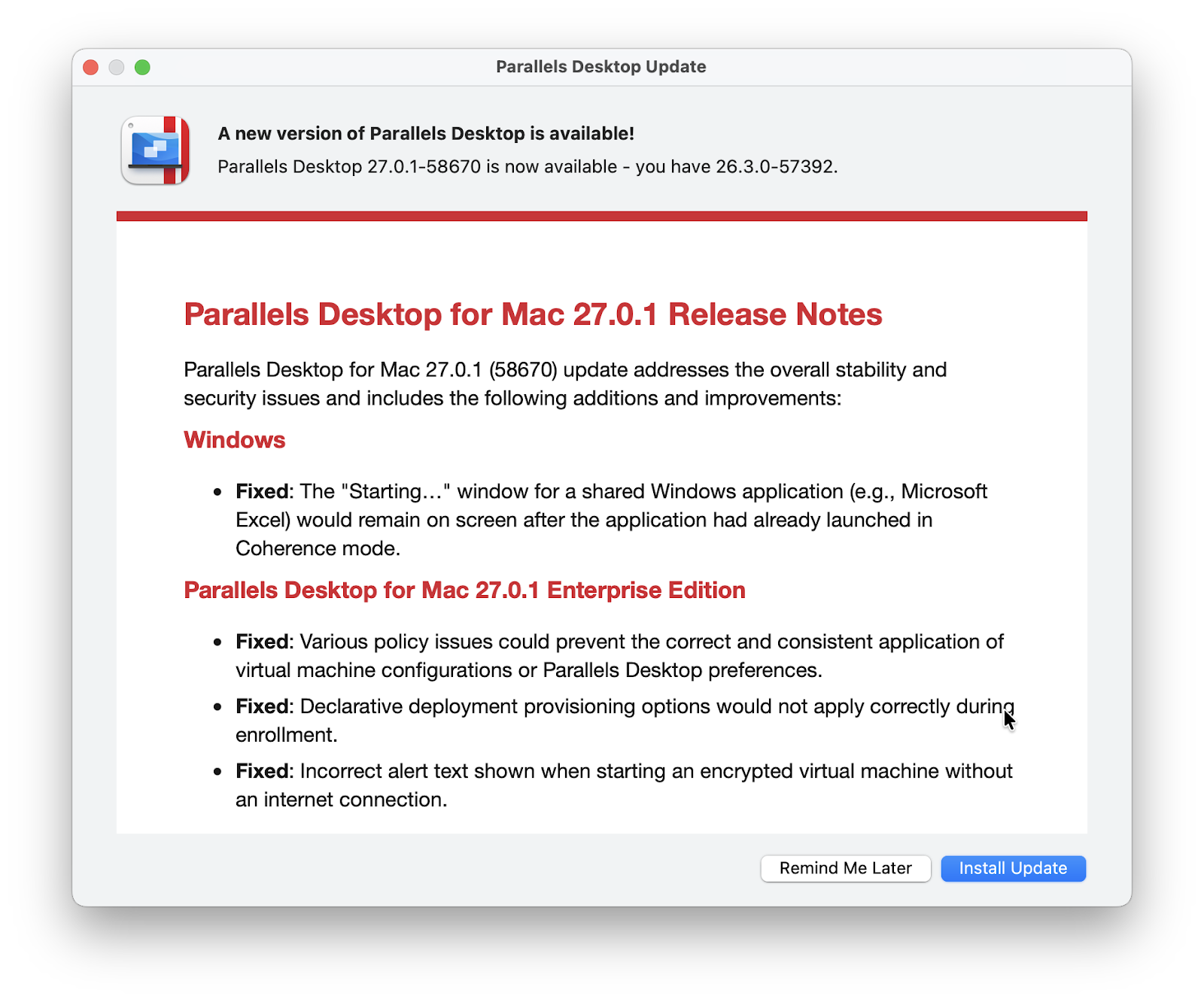
One thing I dislike about this app is that it keeps showing me update / promo / advertisement pop-ups of new versions or discounts regularly whenever I open it.
It is distracting and annoying.
Parallels Desktop update / promo pop-up
What I want is to use Parallels Desktop peacefully without this annoying pop-up.
In this post, I’ll show you some steps you can do to disable this pop-up.
In this section, I’ll show you multiple steps you can do to disable Parallels Desktop auto-update.
I compiled these steps and tested them with trial and error.
There is no guarantee it’ll still work in the future.
But I’ll keep it updated whenever there is a report these steps stop working.
Step 1: Disable Auto Update from Preferences
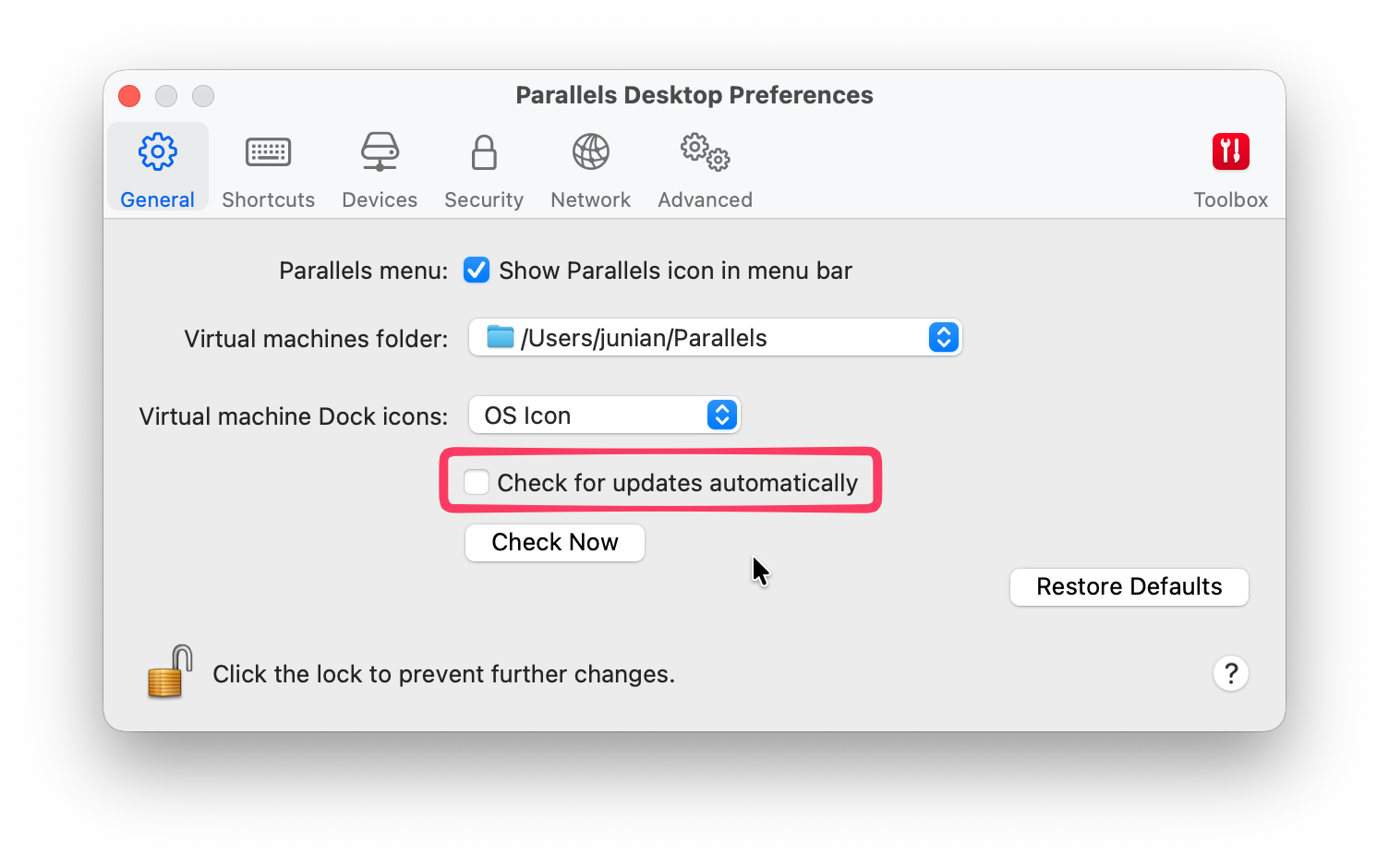
First thing first, open Parallels Desktop’s preferences window by clicking Parallels Desktop > Preferences ... from the left-top menu bar.
You can also press the ⌘ Command + , keyboard shortcut.
Uncheck the Check for updates automatically.
Disable Parallels Desktop Auto Update Check
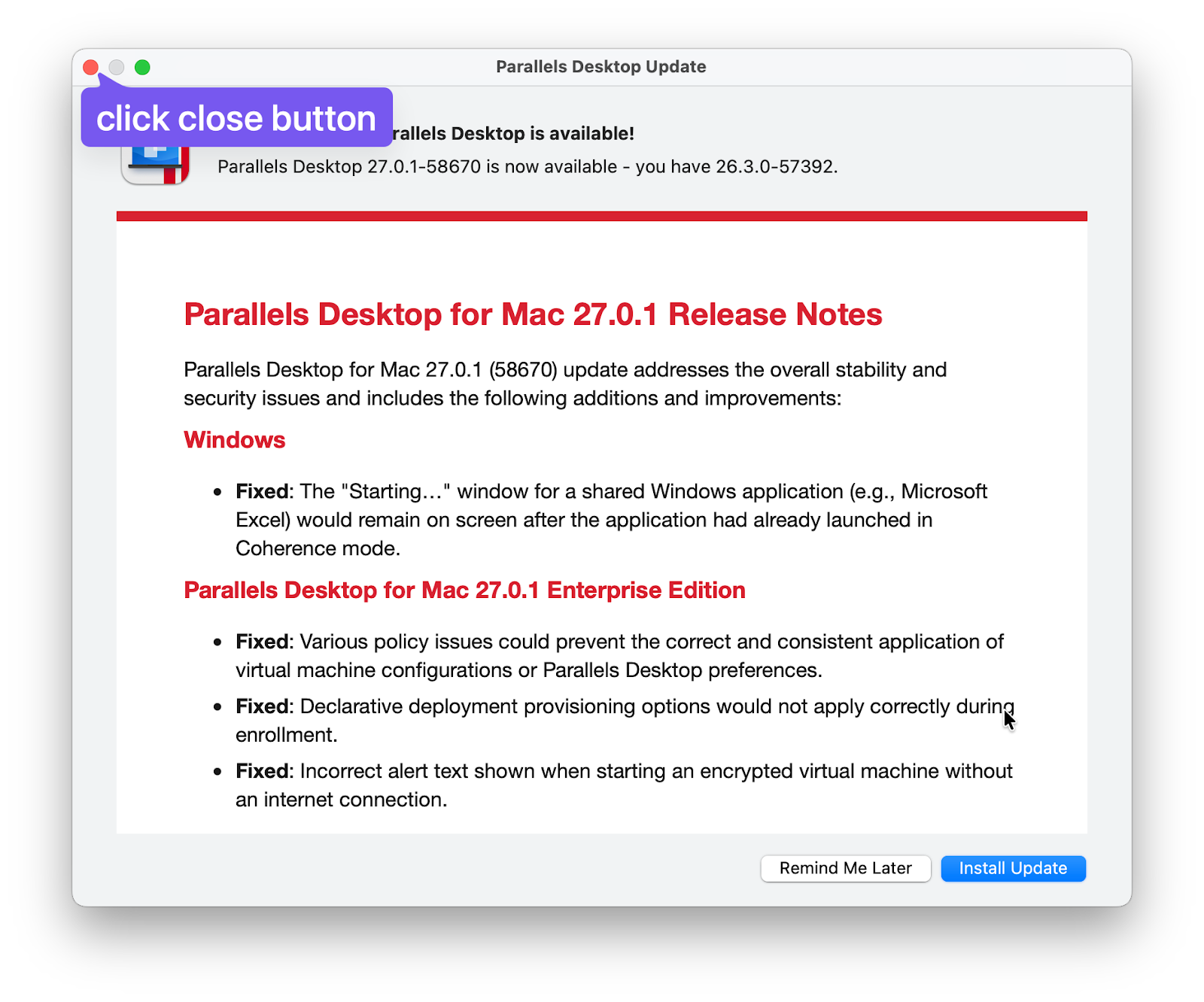
If the pop-up window keeps showing up whenever you open the Parallels Desktop app (maybe after you click the “Check for Updates…” button manually), then you need to click the Close button, not “Remind me Later,” because it’ll display the same pop-up window again.
Click close button of Parallels Desktop pop-up window
Step 2: Disable ‘Check for updates’ Property
Next thing to do is to specify how often Parallels Desktop should check for updates.
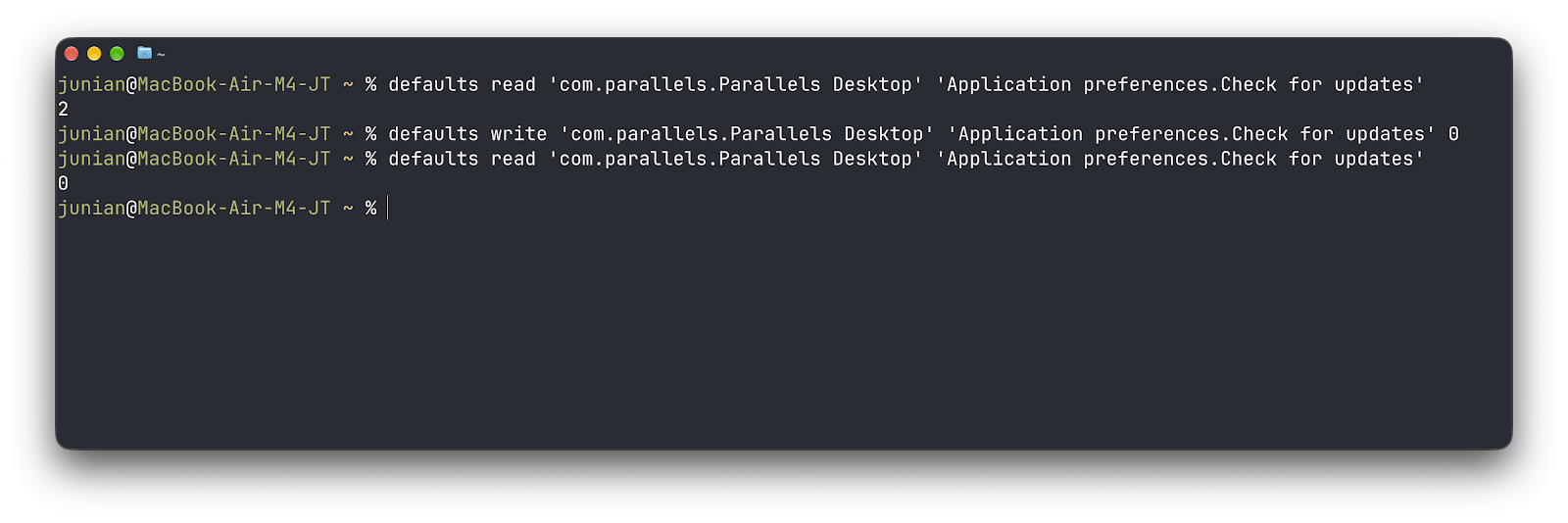
This can be done by modifying the 'Application preferences.Check for updates' property from the Parallels Desktop property list file.
You can select the property value using one of the following options:
0 — Never
1 — Once a day
2 — Once a week
3 — Once a month
By the time I wrote this tutorial, the default value was 2, which meant my Parallels Desktop was still checking for updates once a week!
What you need to do is to set this value to 0 so Parallels Desktop will never check for updates again.
To do that, open Terminal and enter this command:
defaults write 'com.parallels.Parallels Desktop''Application preferences.Check for updates'0
Verify this property is already set by entering the following command. Make sure the value shows 0.
defaults read'com.parallels.Parallels Desktop''Application preferences.Check for updates'
Disable Parallels Desktop Check for updates property
Optionally, you can also disable 'Download updates automatically', even though it’s probably not going to make any difference if you already disable the 'Check for updates' property.
But better do it too by entering this command in Terminal:
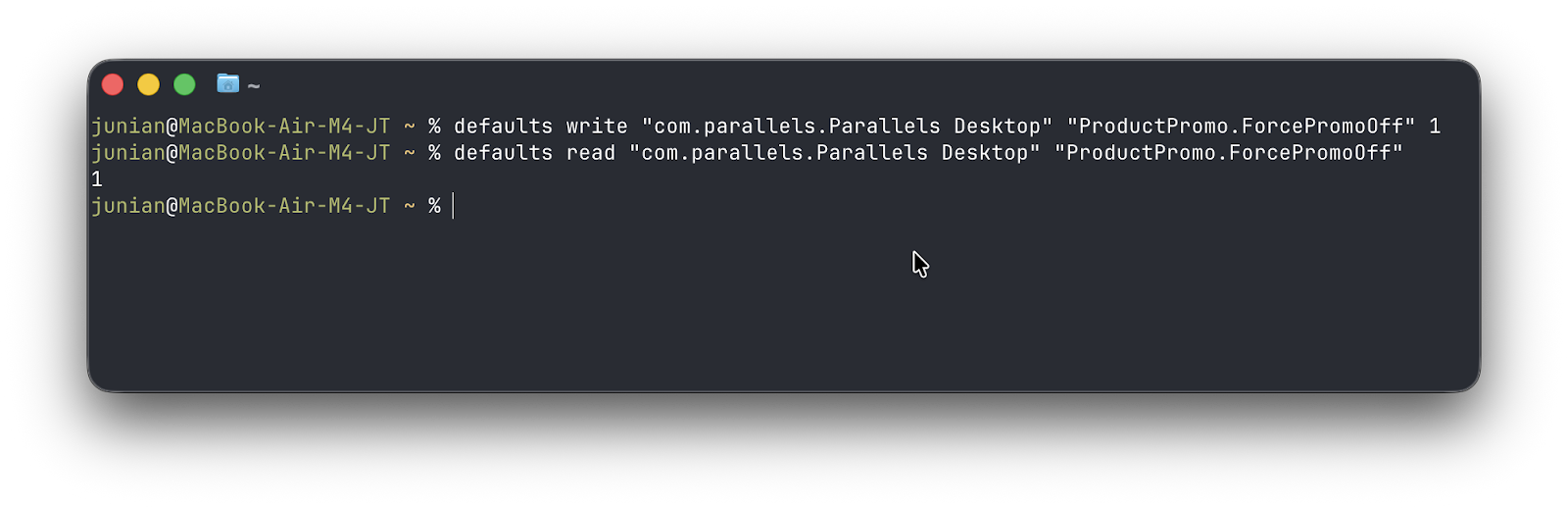
What this command does is force Parallels Desktop not to show you any promotion pop-up window.
By default, the value is 0, which means the promo is enabled.
It is a hidden configuration that can only be toggled using Terminal because they don’t provide this option in their UI.
Verify this configuration by entering the following command. Make sure it shows 1.
Optionally, you can also enable the 'WelcomeScreenPromo.PromoOff' property.
In my case, the value is already 1, which means already Off, which means the welcome screen promo is already disabled.
But just in case, you can set it too by entering this command:
2026/10/21: Additional steps by disabling Application preferences keys of Check for updates and Download updates automatically. Also an optional property WelcomeScreenPromo.PromoOff.