
Previously, I wrote about how to disable Parallels Desktop update pop-up window. It works perfectly fine, but there is another annoying pop-up window that keeps showing up when I’m using Parallels Desktop.
This pop-up window dialog asked me to use com.parallels.SharedAppLink.Agent to open Windows’ .lnk files.
Do you want all documents with the extension “.lnk” to open with “com.parallels.SharedAppLink.Agent”?
[Use “com.parallels.SharedAppLink.Agent”]
[Don’t Change]
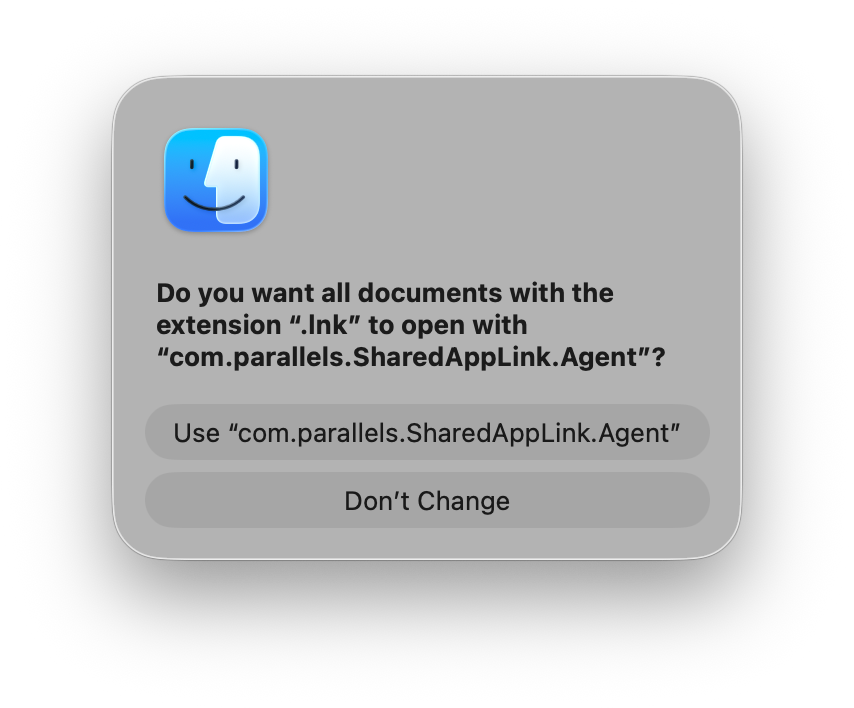
It is annoying and keeps showing up. Luckily, it’s very easy to fix.
Disable Parallels Desktop SharedAppLink Dialog
To solve this issue, you can just open the Parallels Link.app once.
This app is invisible from the /Applications/ directory because it’s embedded inside Parallels Desktop.app.
You can open it directly from Terminal by executing this command:
open "/Applications/Parallels Desktop.app/Contents/MacOS/Parallels Link.app"If you prefer using Finder, that’s fine too. Open Finder, click the Go menu and select Go to Folder… (or press the ⌘ command + shift + G shortcut).
Enter the following path:
/Applications/Parallels Desktop.app/Contents/MacOS/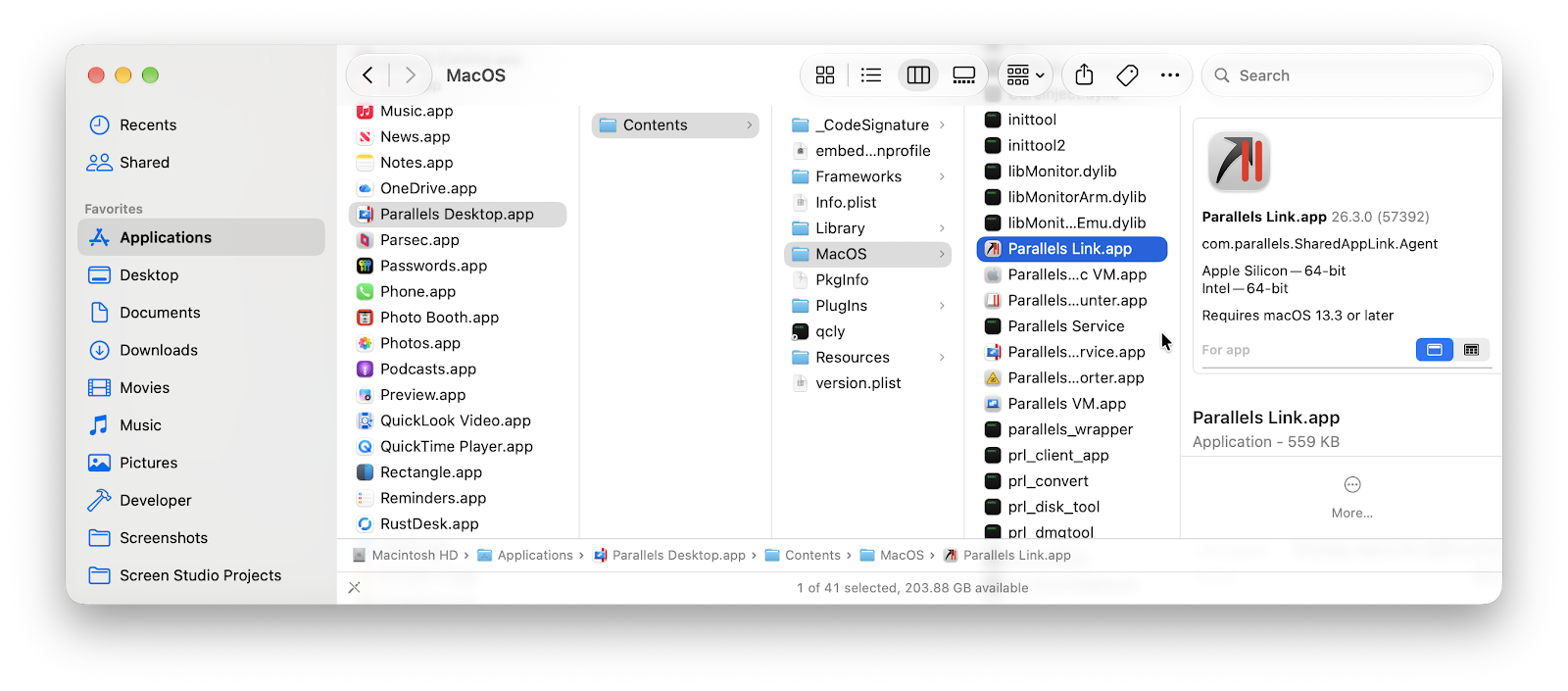
From the list of files visible in Finder, double-click Parallels Link.app.
This will fix the .lnk dialog, because Parallels Link, the app that handles the .lnk file type, finally runs properly when you open it manually.
That’s all you need to do!
There is another step you can try to fix it permanently.
Open Parallels Desktop’s preferences window by clicking Parallels Desktop > Preferences... from the left-top menu bar.
You can also press the ⌘ Command + , keyboard shortcut.
Go to the Advanced tab and click the Reset Warnings button next to the Reset all dialog warnings label.
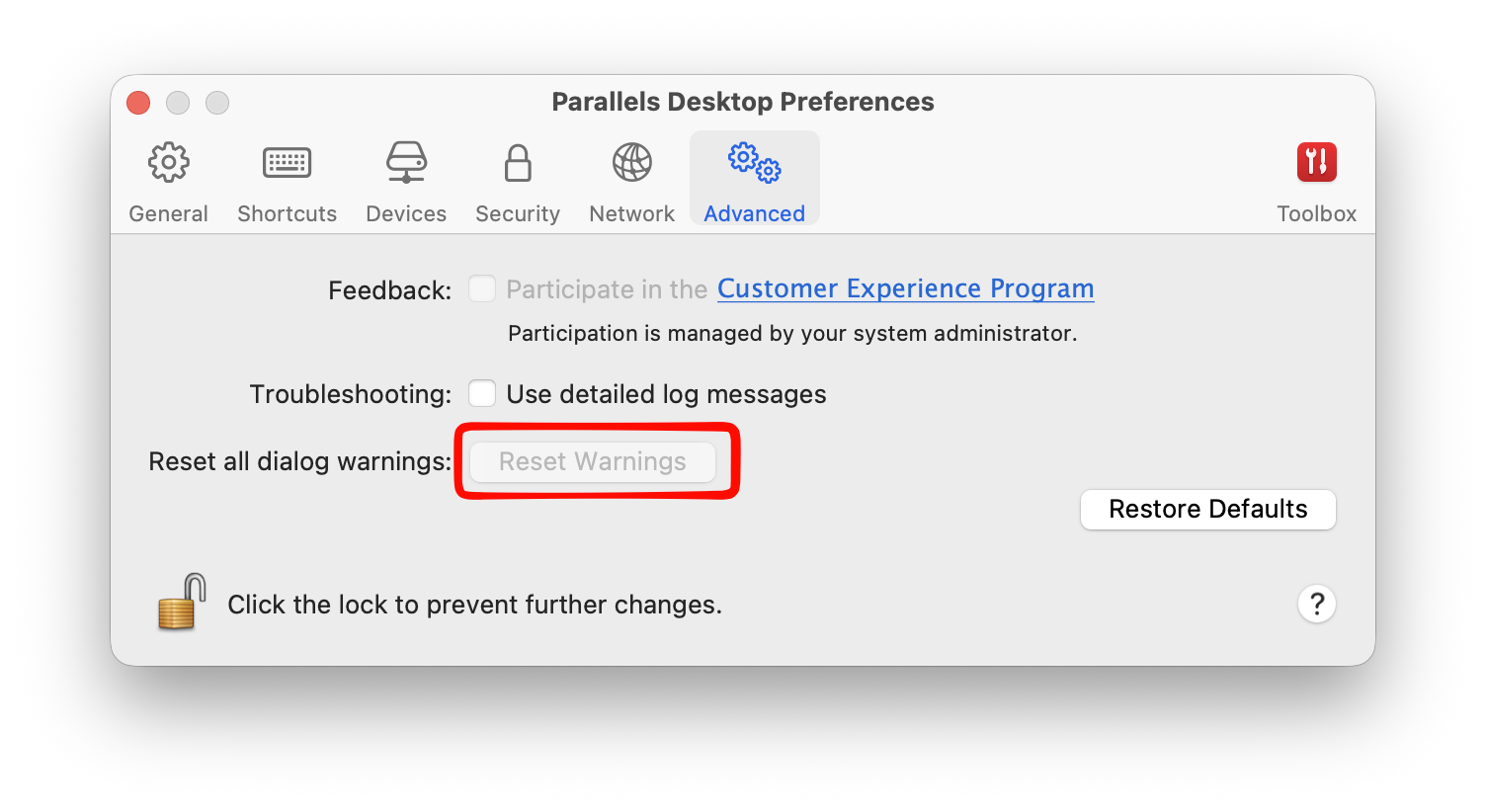
The Reset Warnings from the screenshot above was enabled before I wrote this post. If it’s disabled, then you can just skip it.
Quit the Parallels Desktop app and re-open it. That’s it! Now that pop-up window is gone for real.
Final Thoughts
That’s it, thanks for reading my short blog post. I hope it can solve your problem.
As usual, if you have any questions or a better method, leave a comment below. Thanks for reading, and see you next time!