
Recently, one of my web projects failed to build on Cloudflare. The reason is there is a post-postprocessing script that uses TypeScript instead of JavaScript, and I run it like this:
$ node scripts/indexnow.ts
node:internal/modules/esm/get_format:219
  throw new ERR_UNKNOWN_FILE_EXTENSION(ext, filepath);
        ^

TypeError [ERR_UNKNOWN_FILE_EXTENSION]: Unknown file extension ".ts" for /opt/buildhome/repo/scripts/indexnow.ts
    at Object.getFileProtocolModuleFormat [as file:] (node:internal/modules/esm/get_format:219:9)
    at defaultGetFormat (node:internal/modules/esm/get_format:245:36)
    at defaultLoad (node:internal/modules/esm/load:120:22)
    at async ModuleLoader.loadAndTranslate (node:internal/modules/esm/loader:580:32)
    at async ModuleJob._link (node:internal/modules/esm/module_job:116:19) {
  code: 'ERR_UNKNOWN_FILE_EXTENSION'
}

Node.js v22.16.0
It makes sense because by the time I wrote this, Cloudflare uses Node.js v22.16.0 by default. Meanwhile, Node.js support for native TypeScript execution is available for v22.18.0 or later, and I personally used v24.18.0 on my MacBook.
To resolve this issue, all I need to do is set the Node.js version to the correct version, and here’s how.
Changing Cloudflare Node Version
There are 3 different ways to set the Node.js version:
.nvmrcfile: You can set it manually, or use the currently installed Node version on your machine using the following command:
node -v > .nvmrc.node-versionfile: Similar to.nvmrc, you can set the Node.js version with the following command:
node --version > .node-versionSet the
NODE_VERSIONenvironment variable under Worker & Pages project Settings. The value should be something like24.18.0.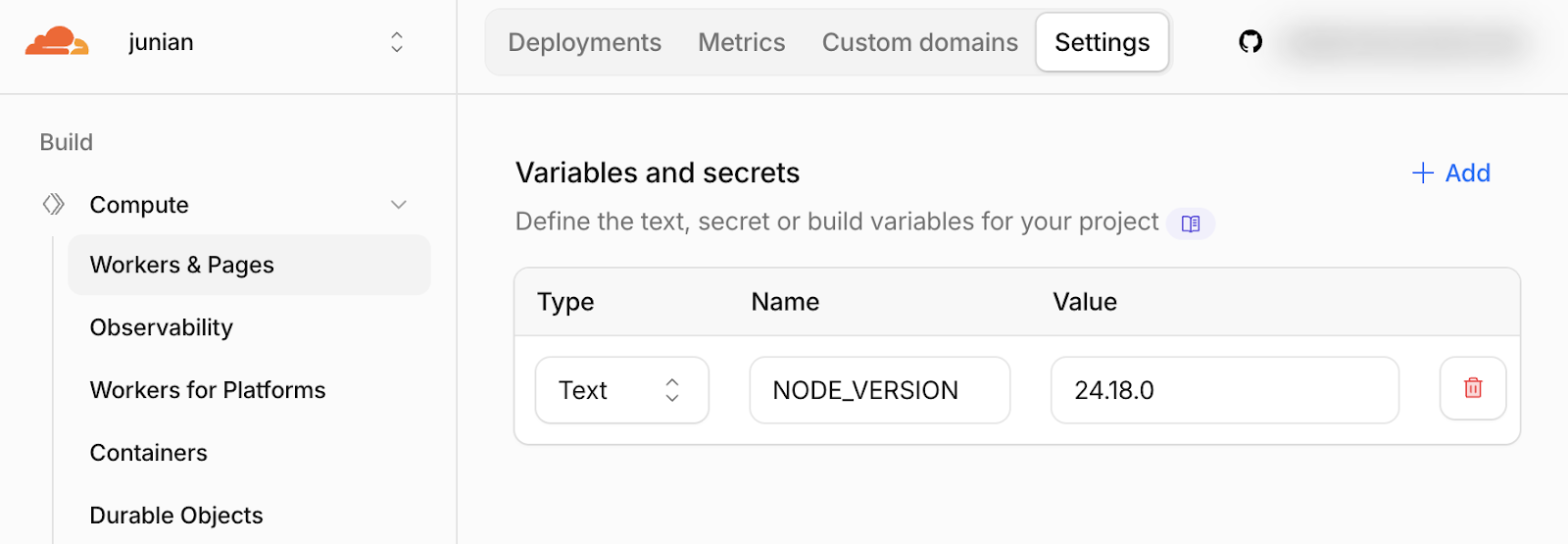
Cloudflare Workers & Pages Environment Variables
That’s it, next time you deploy your project, it’ll be built using the correct Node.js version.
Final Thoughts
As usual, if you have any questions or a better method, leave a comment below. Thanks for reading, and see you next time!